Profile Settings
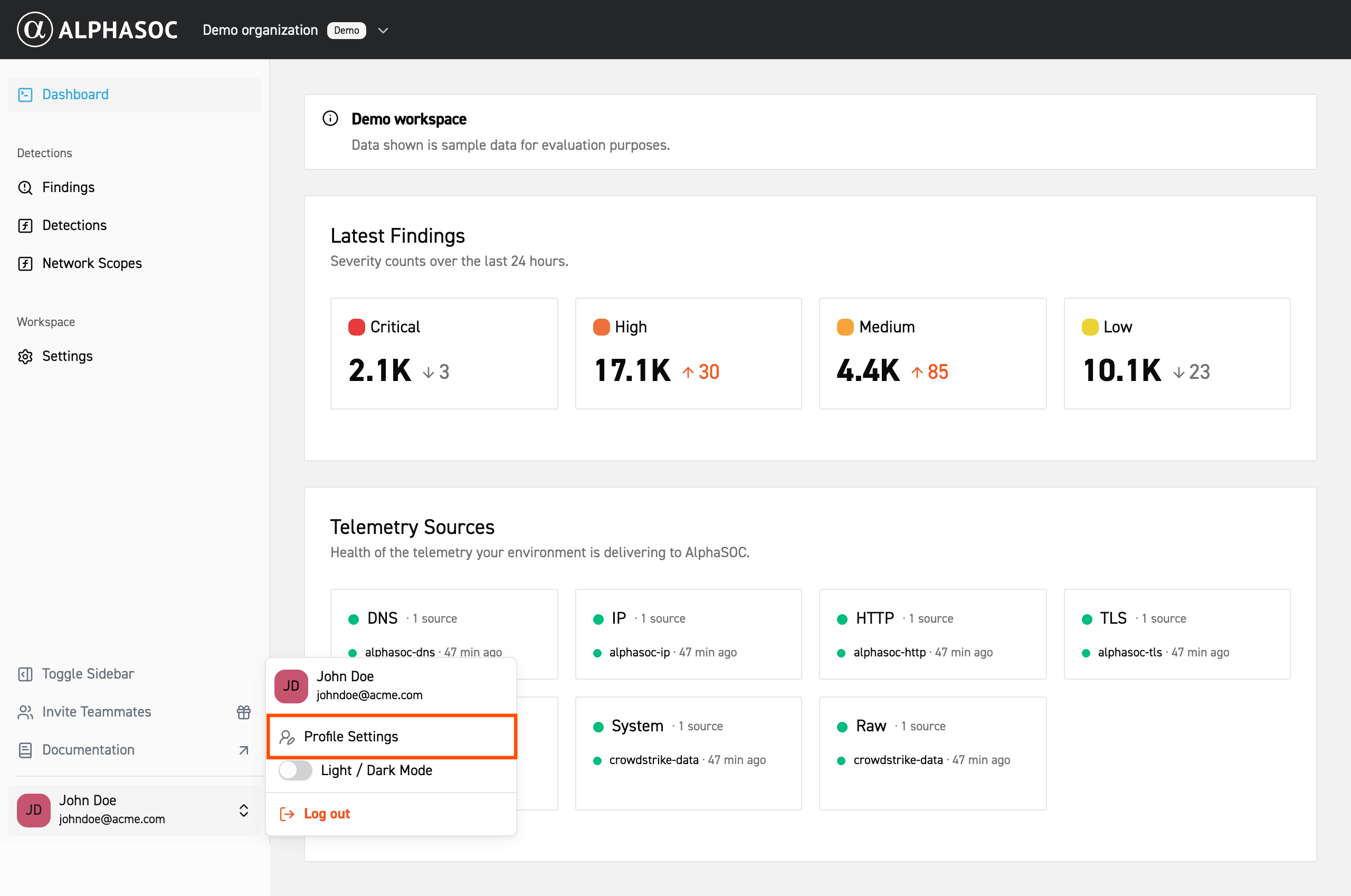
To access the Profile Settings, click on the icon next to your name in the bottom left corner of the page, then click Profile Settings.
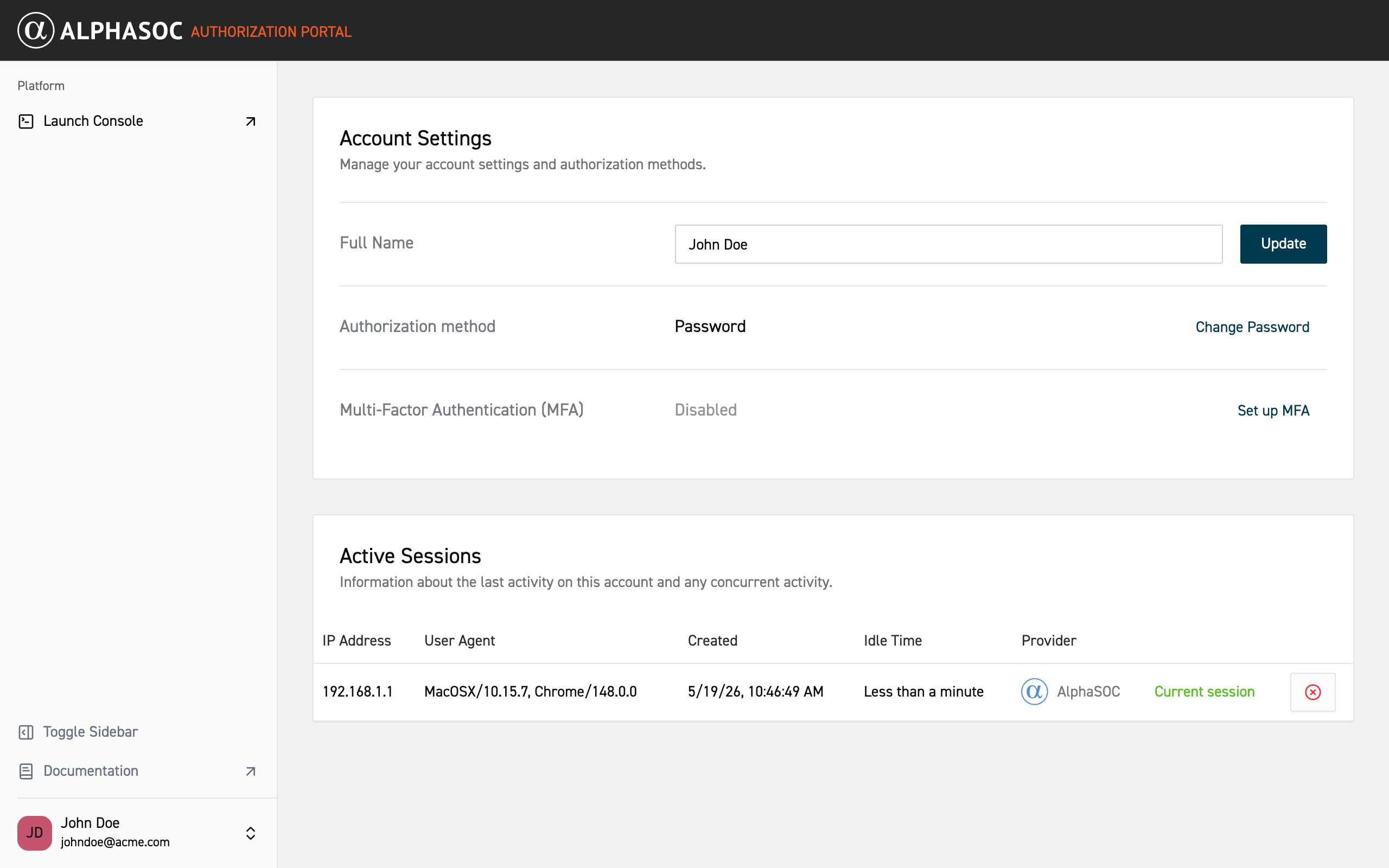
Here you can view and update your user information, change your password, enable multi-factor authentication (MFA), and view and manage your active sessions.
Managing Active Sessions
At the bottom of the Profile Settings page, you can view your active sessions. Click the "X" icon next to the session to terminate it.
Setting Up Multi-Factor Authentication (MFA)
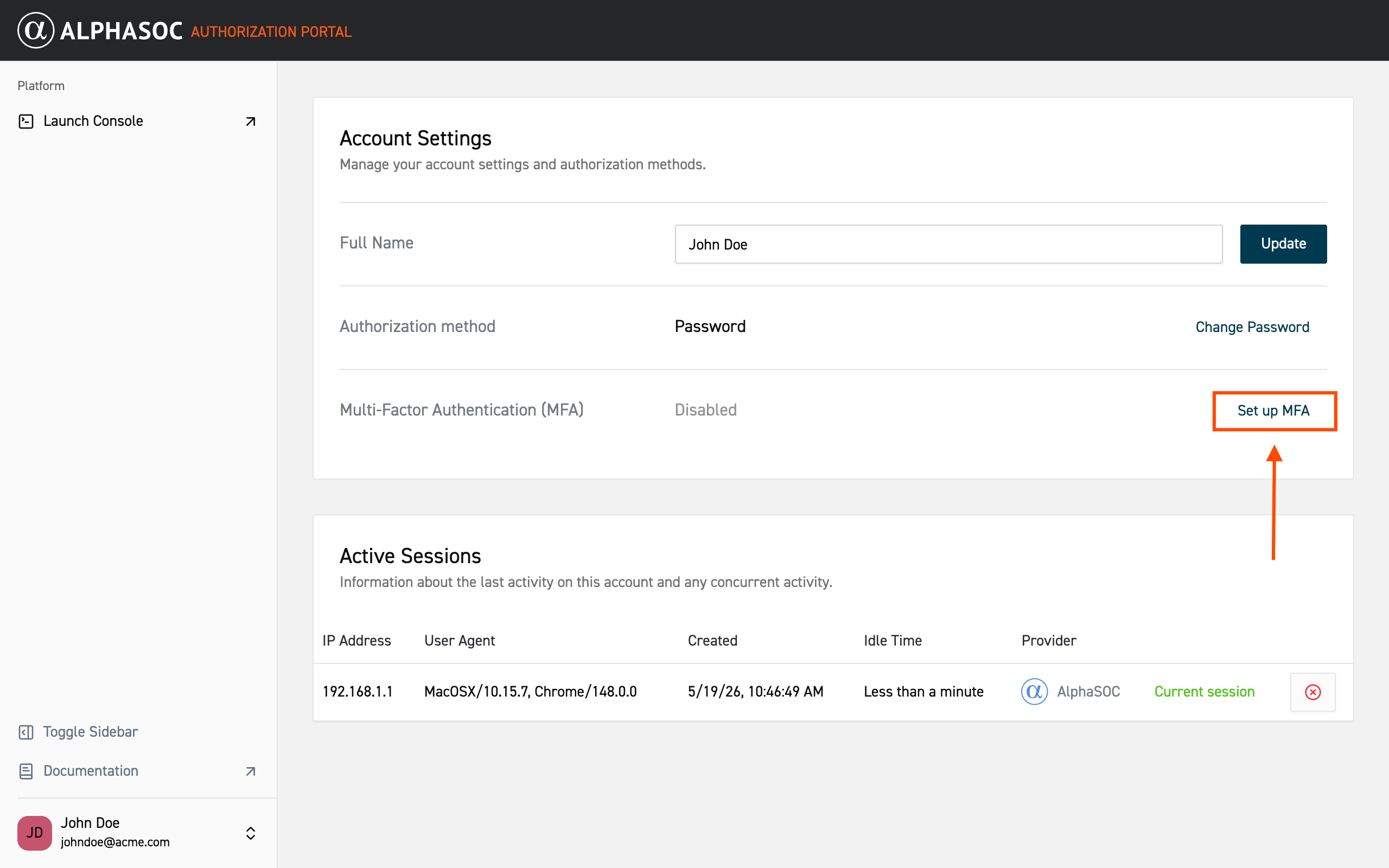
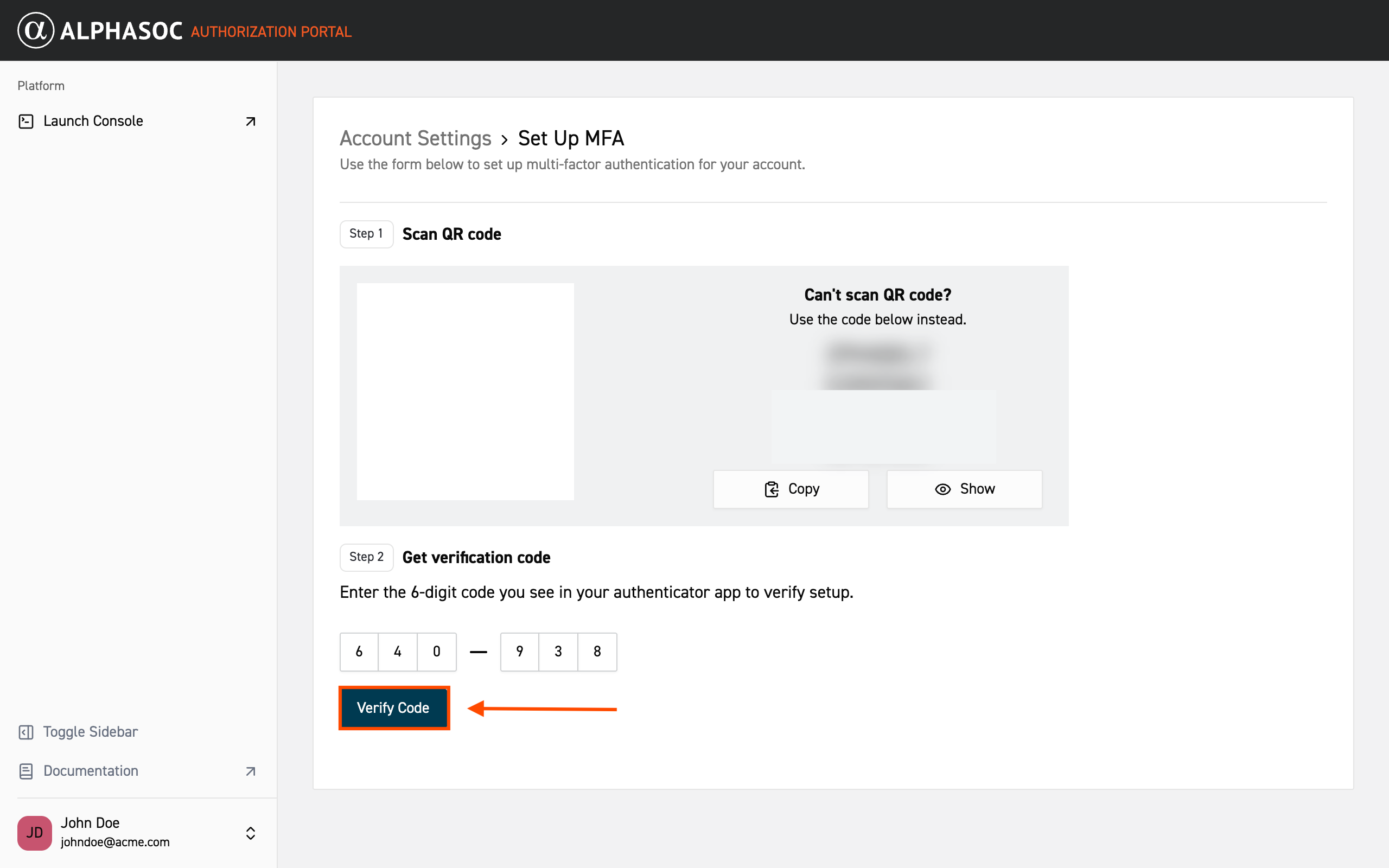
- Click the Set up MFA button.
- Scan the QR code using an authenticator application (such as Google Authenticator or Microsoft Authenticator).
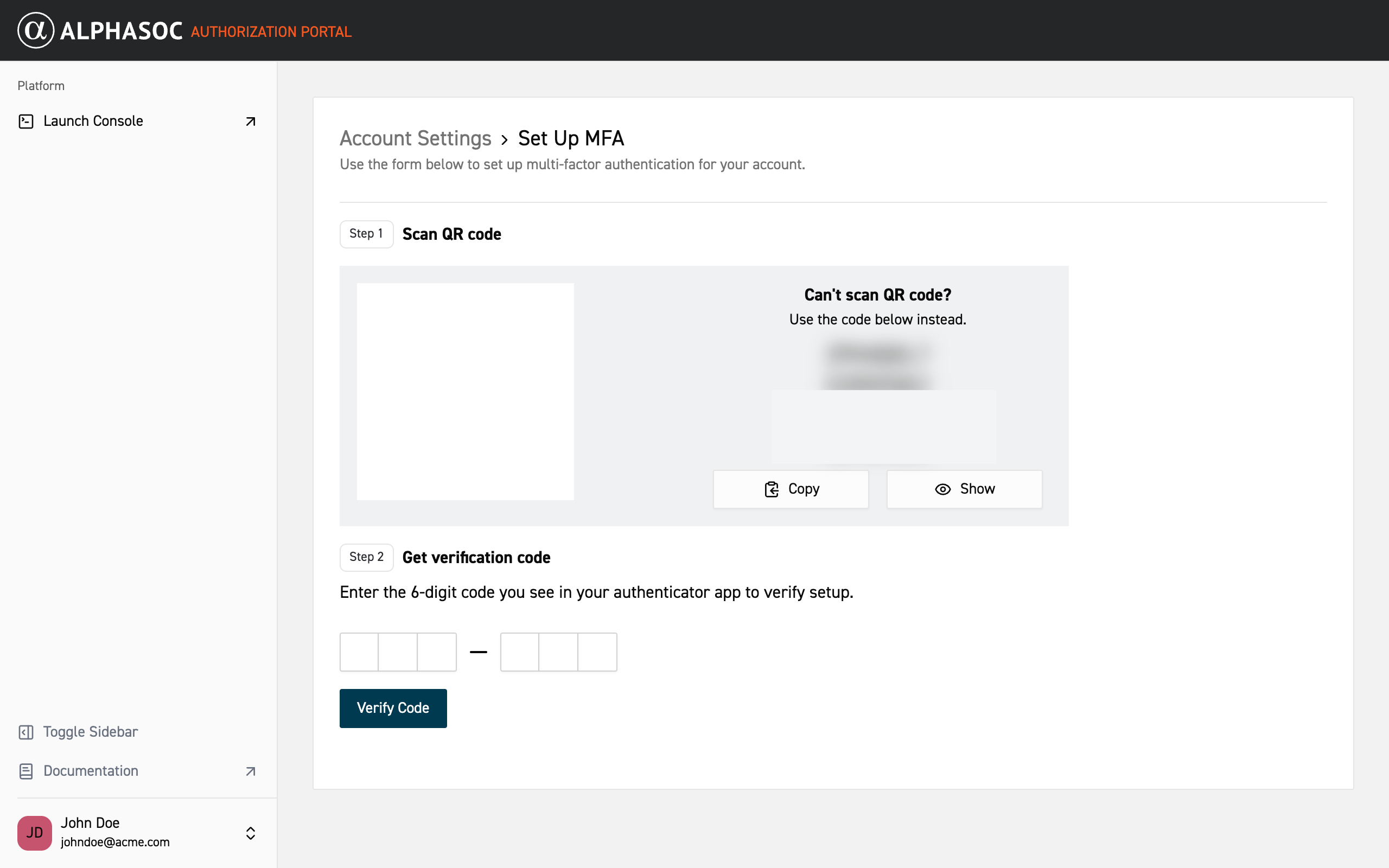
- Enter the generated 6-digit verification code and click Verify Code.
-
Make sure to copy the backup code and store it in a safe place. You can use this backup code to access your account if you lose access to your authenticator app.
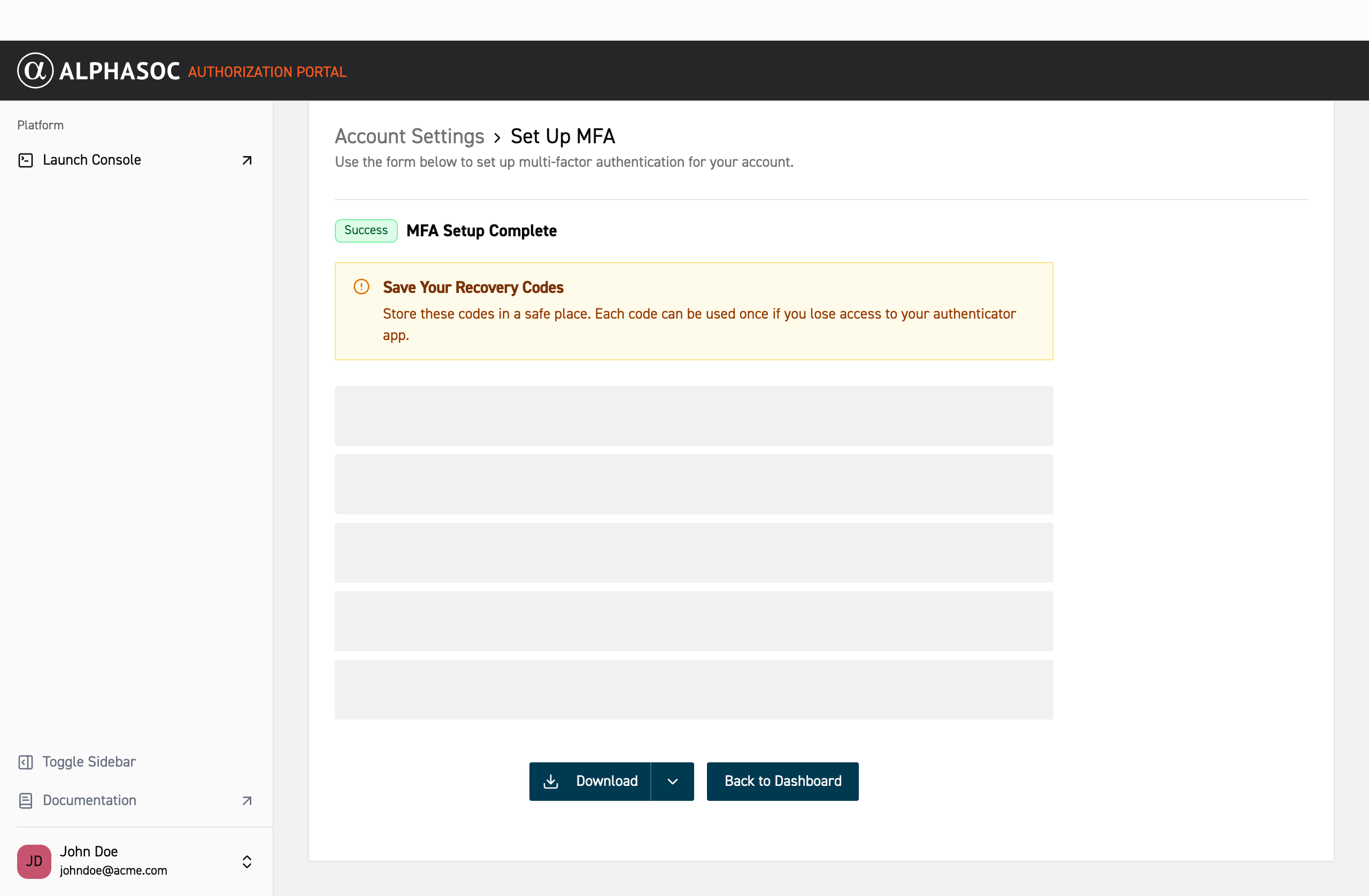
After MFA is set up, you will be required to enter a code from your authenticator app each time you log in.