AlphaSOC for Splunk
Overview
The AlphaSOC for Splunk app surfaces AlphaSOC findings directly within Splunk.
Use the built-in dashboards to triage threats, investigate entities, and pivot
to raw OCSF findings — all without leaving Splunk. The app also includes the
alphasoc generating command for running targeted searches over OCSF telemetry
stored in AlphaSOC's data lake.
Installation
You can find the AlphaSOC for Splunk app in the Splunkbase apps catalog.
The AlphaSOC Data Lake Search feature is currently in beta. Contact AlphaSOC support to request access.
Configuration
To connect the AlphaSOC for Splunk app to your Analytics Engine, generate an API key in the AlphaSOC Console and configure it in Splunk. Follow the steps below.
- Navigate to the AlphaSOC Console.
- Go to the Credentials section and click API Keys.
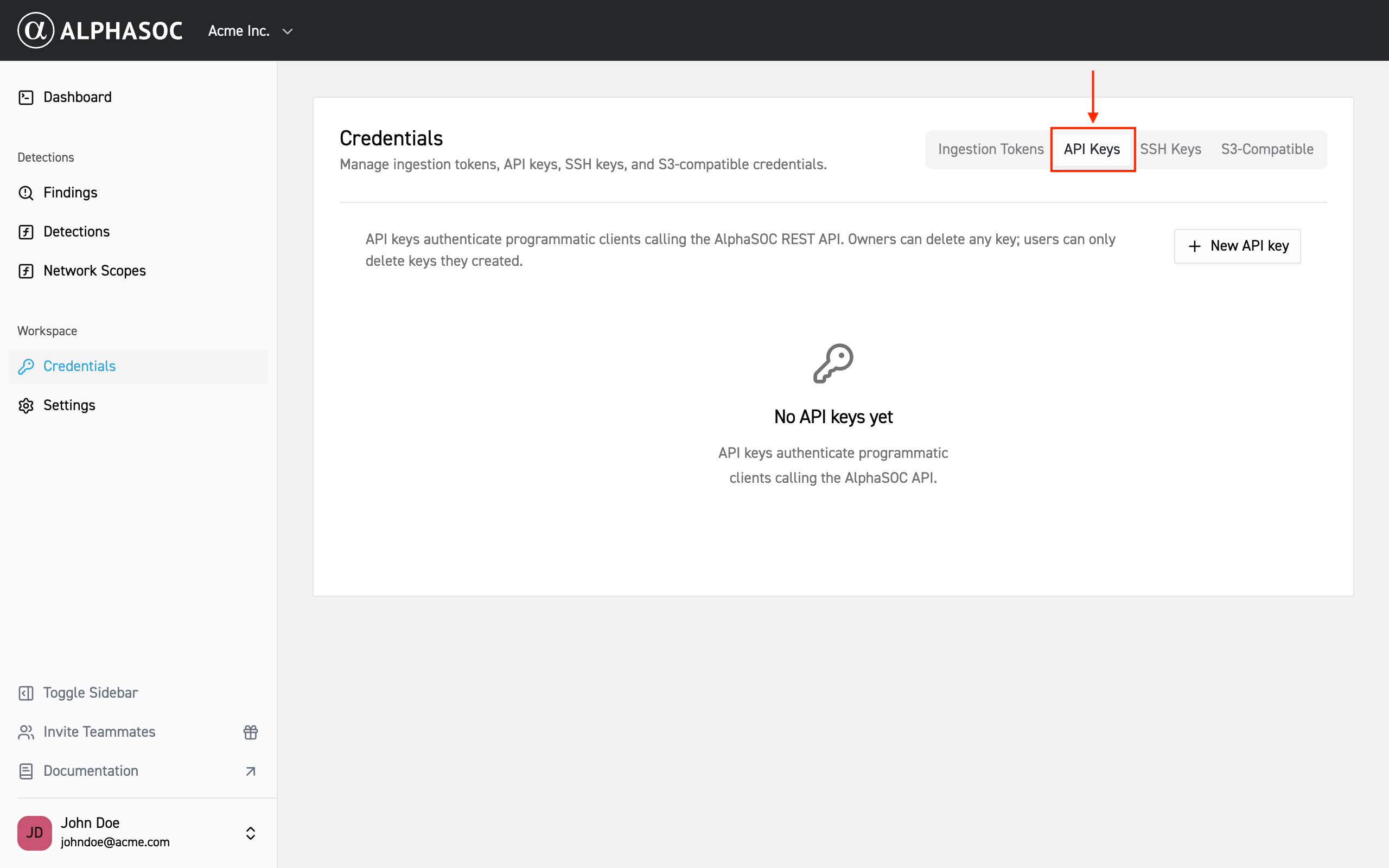
- Click on New API key button and, optionally, provide a description for
the new key.
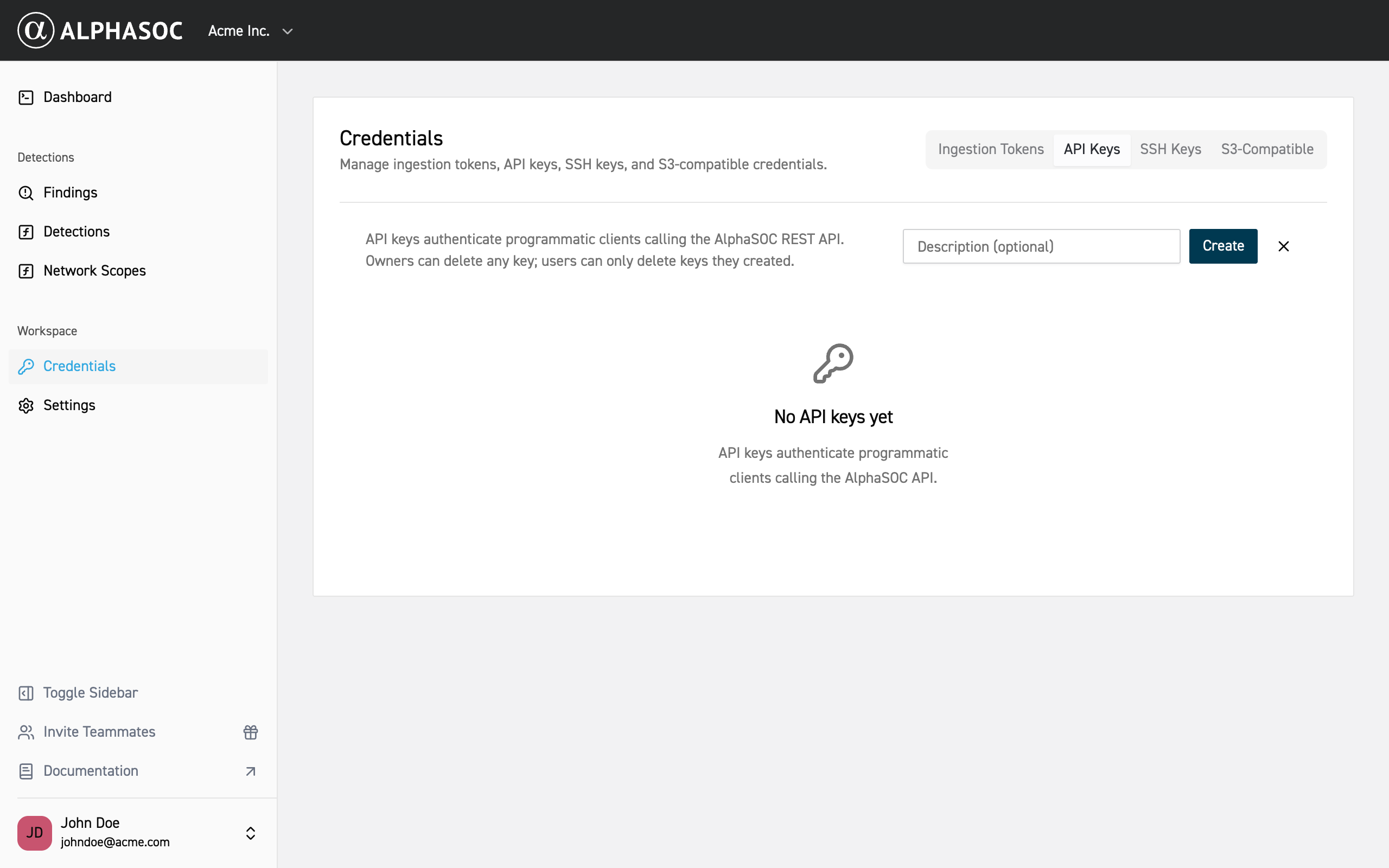
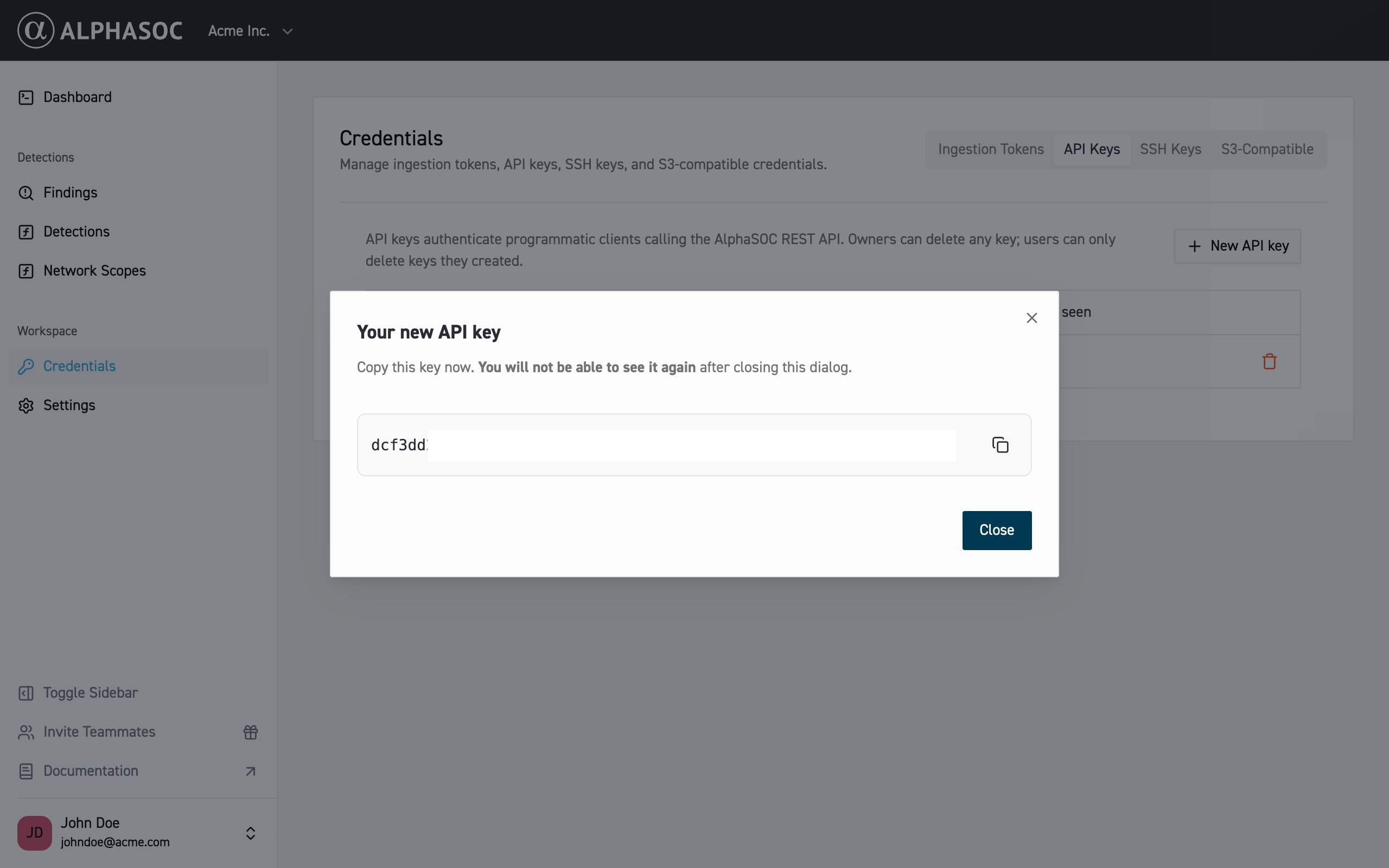
- Click Create to create the API key.
- Copy the generated API key and keep it in a secure place, as you will need it
to configure the integration with Splunk.
- In the AlphaSOC for Splunk app, go to the Settings tab.
- Click on the Analytics Engine. Paste your AlphaSOC API URL under API
URL and the copied API key into the designated field under API Key.
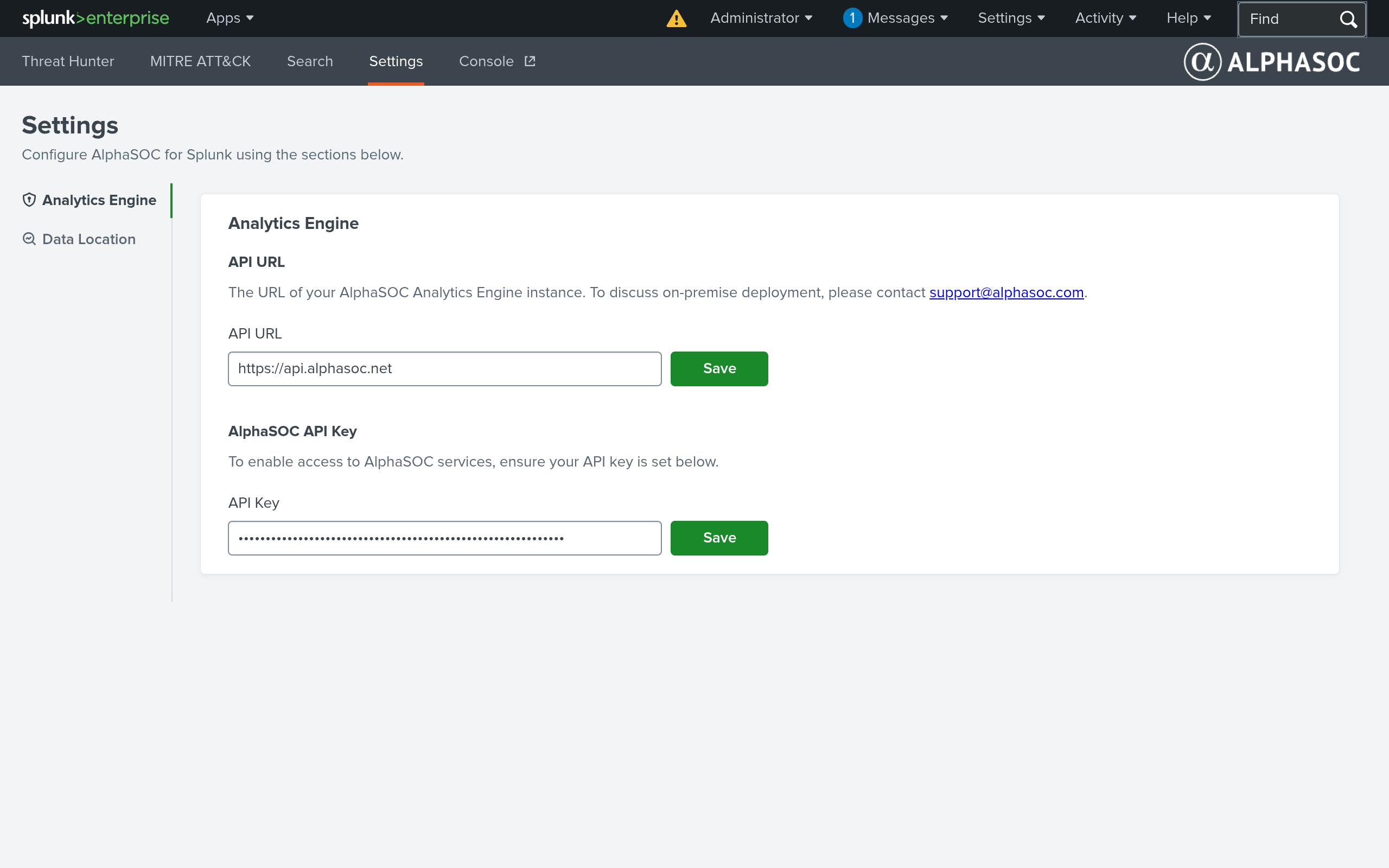
- Click Save to apply the changes.
- Still in the Settings tab, click on Data Location. Select the Splunk
index containing your AlphaSOC findings from the dropdown (e.g.,
alphasoc_findings).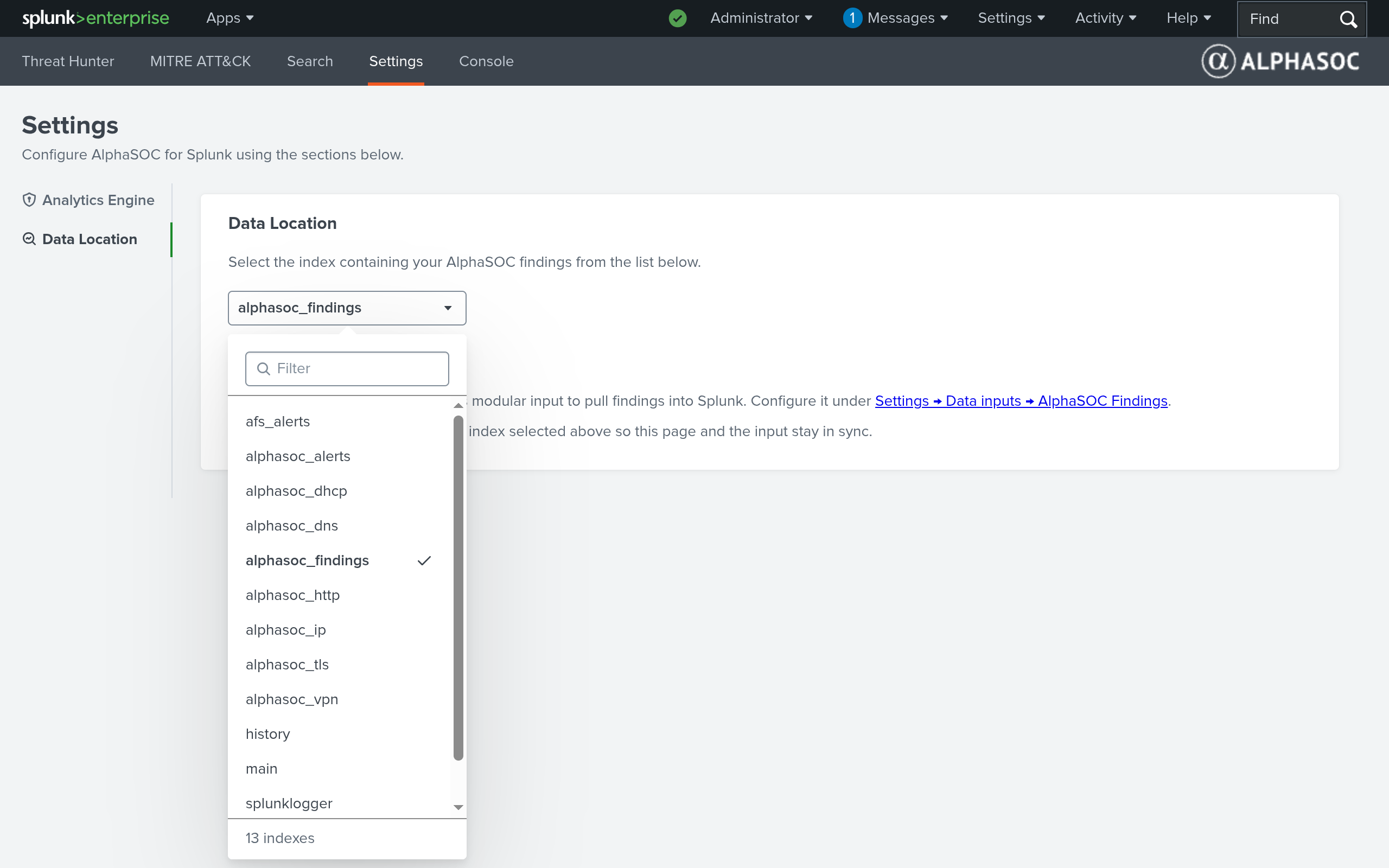
Investigating Threats
The AlphaSOC for Splunk app provides three views that form an investigation workflow — from high-level threat overview down to raw OCSF findings.
Threat hunter
The Threat Hunter dashboard is the default landing page. It displays a prioritized table of all entities with active detections in your environment.
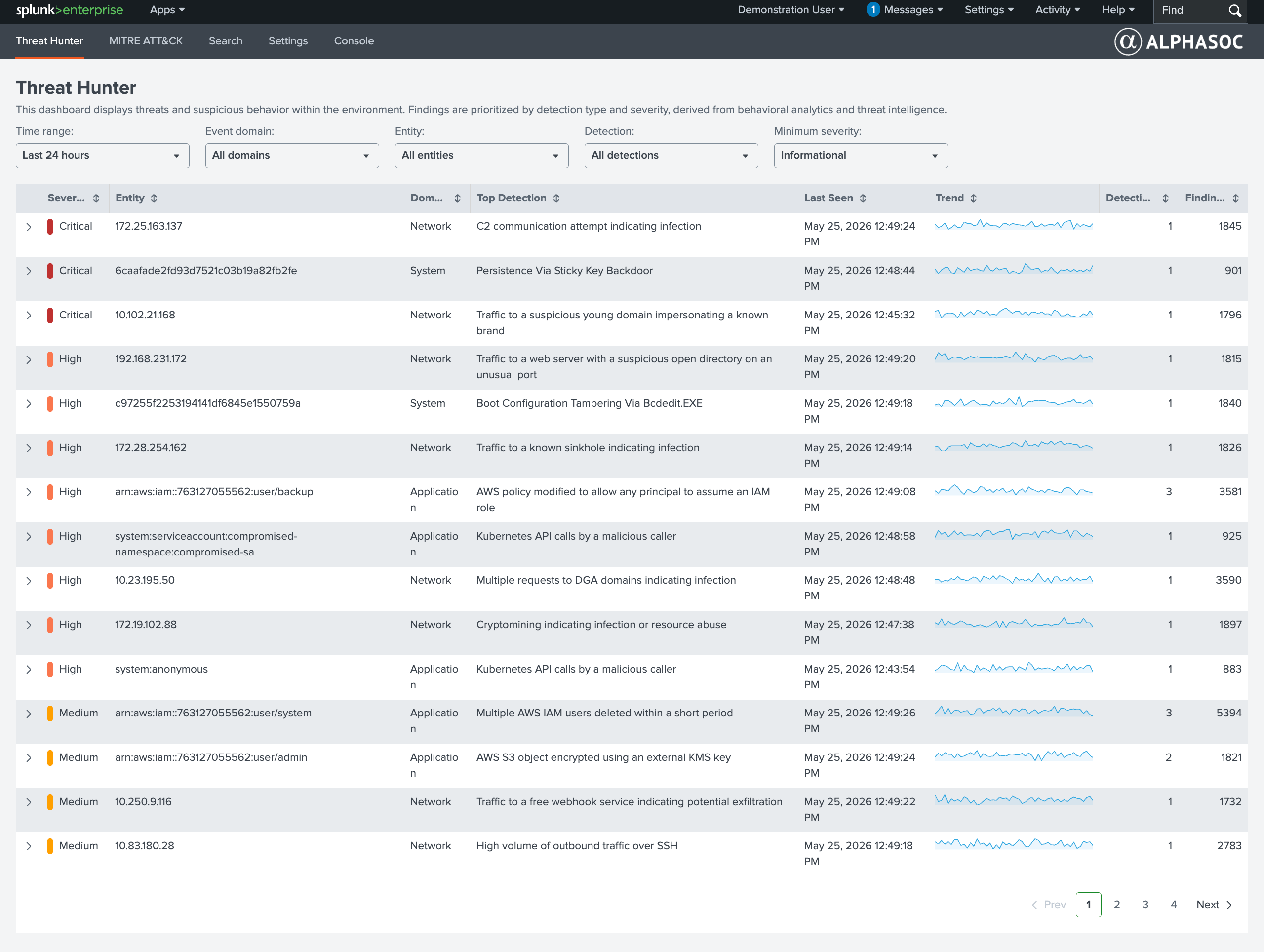
Each row represents an entity (IP address, hostname, AWS ARN, Kubernetes service account, etc.) and includes:
- Severity — highest severity level assigned to the entity's findings.
- Entity — the identifier of the affected host or account.
- Domain — event domain: Network, System, or Application.
- Top Detection — the name of the highest-priority detection for this entity.
- Last Seen — timestamp of the most recent finding.
- Trend — sparkline showing finding volume over the selected time range.
- Detections — number of distinct detection rules that fired.
- Findings — total count of findings associated with the entity.
Use the filter bar at the top to narrow results by time range, event domain, entity, detection type, and minimum severity. Rows are color-coded by severity — Critical, High, Medium — so the most urgent items stand out at a glance.
MITRE ATT&CK
The MITRE ATT&CK dashboard maps the same findings onto the MITRE ATT&CK Matrix for Enterprise. Columns represent tactics, and each cell lists the techniques AlphaSOC has observed in your environment.
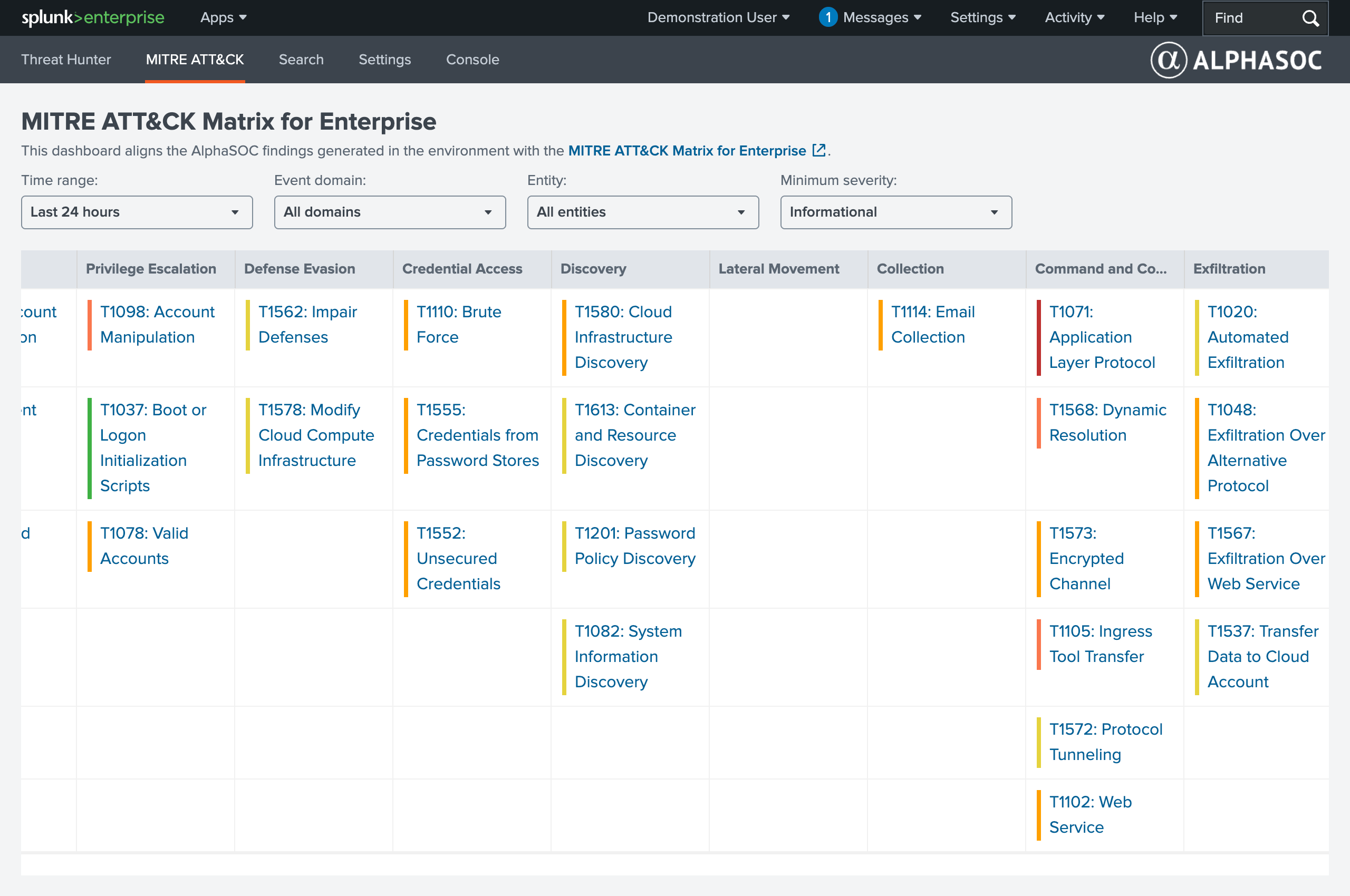
Use this view to assess attacker coverage across the kill chain rather than triaging individual entities.
Findings explorer
From the Threat Hunter table, click on any entity row to open the Findings Explorer. This is the investigation dashboard for a single entity.
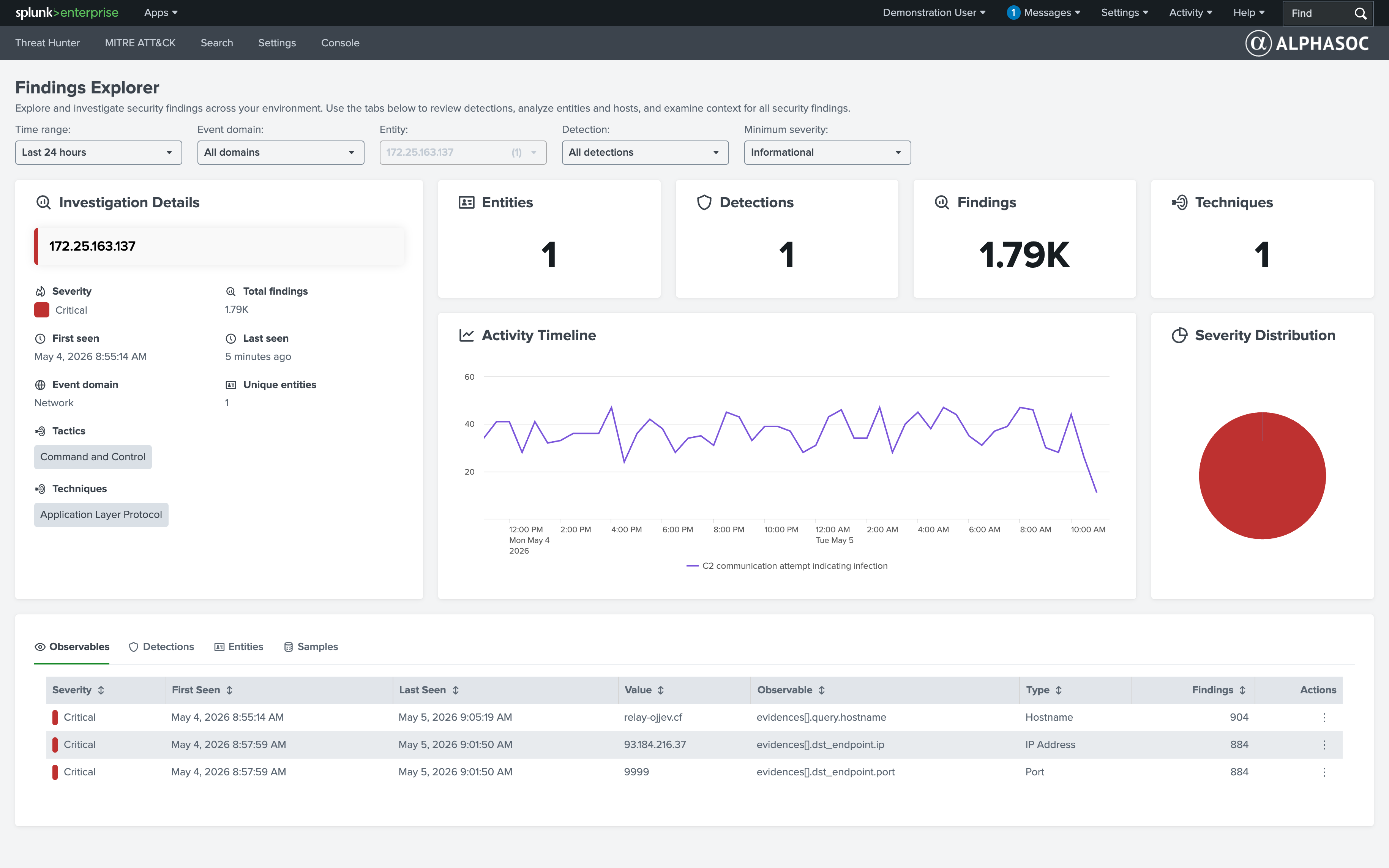
Investigation details
The left panel summarizes the entity under investigation:
- Entity identifier — the IP address, hostname, or account (e.g.,
172.25.163.137). - Severity — the highest severity across all findings for this entity.
- Total findings — aggregate count of findings.
- First seen / Last seen — the time window over which activity was observed.
- Event domain — Network, System, or Application.
- Unique entities — count of distinct entities involved.
- Tactics and Techniques — MITRE ATT&CK tactics and techniques mapped to the entity's findings.
Summary cards
Four cards across the top provide at-a-glance counts: Entities, Detections, Findings, and Techniques. Use these to gauge the scope of the investigation — how many detection rules fired, how many total findings were generated, and how many ATT&CK techniques are in play.
Activity timeline
The timeline chart plots finding volume over the selected time range. Use it to identify spikes, sustained activity, or beaconing patterns. The legend indicates the detection type (e.g., "C2 communication attempt indicating infection").
Severity distribution
The donut chart breaks down findings by severity level. A chart dominated by Critical indicates an entity that needs immediate attention.
Observables, detections, entities, and samples
The tabbed section at the bottom provides the detailed breakdown:
- Observables — lists every observable associated with the entity's findings: queried hostnames, destination IPs, destination ports. Each row shows severity, first/last seen timestamps, the observable value, its type (Hostname, IP Address, Port), and the number of findings it appears in.
- Detections — groups findings by detection name.
- Entities — lists all entities involved.
- Samples — shows detailed information about the findings.
Pivoting to raw findings
Each observable row includes an Actions menu (three-dot icon). Click it to open the raw OCSF findings in Splunk Search.
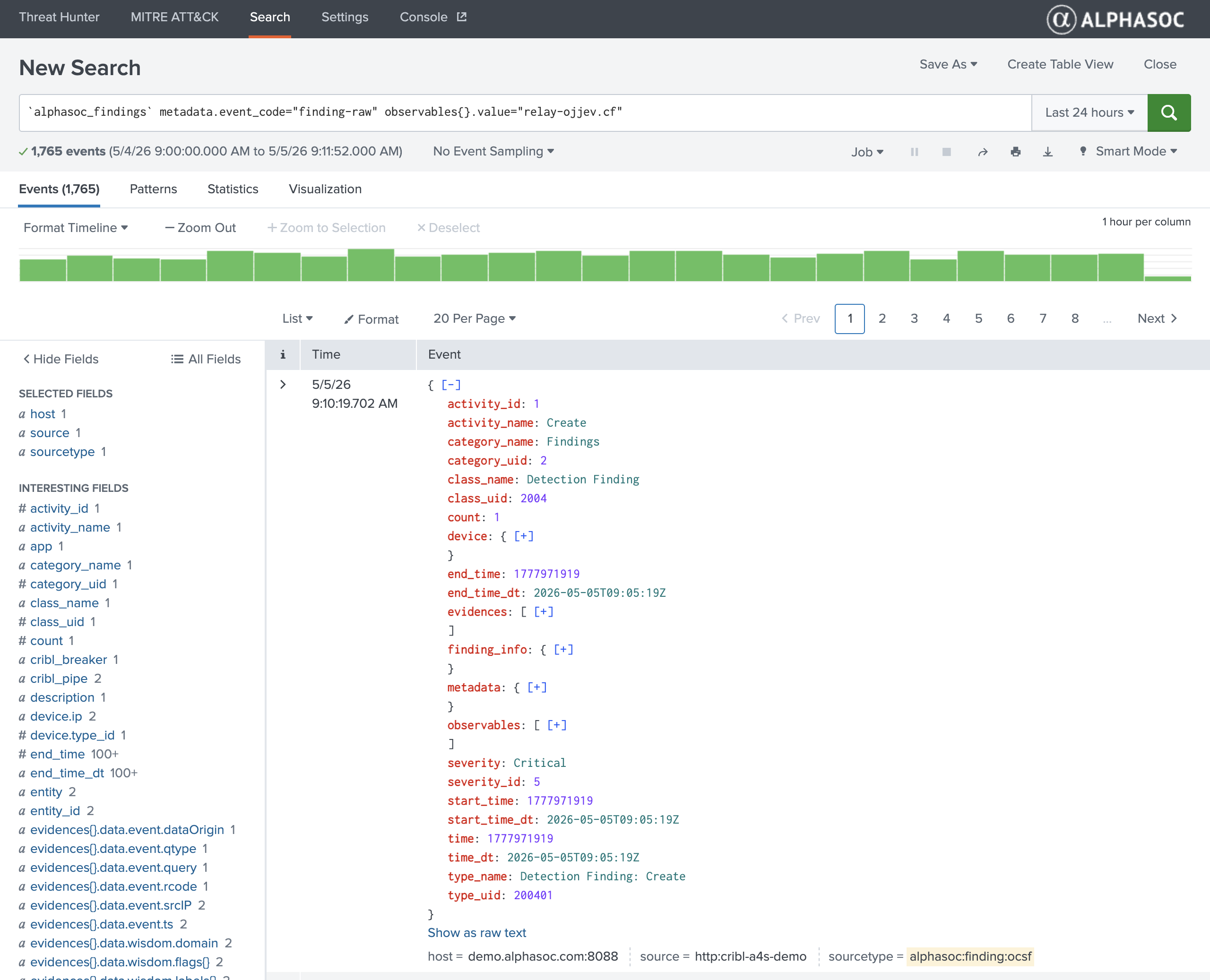
This opens a pre-populated search that retrieves the AlphaSOC OCSF findings matching that observable. Each event in the results includes:
- Event metadata — event code, timestamps, and source identifiers.
- Detection details — detection name, severity score, confidence level, and MITRE ATT&CK mapping.
- Observables — the full set of observables: queried hostnames, resolved IPs, destination endpoints, ports, and protocols.
- Evidence and context — supporting data such as DNS query types, response codes, connection metadata, and threat intelligence enrichment.
Use the Splunk field sidebar to filter, aggregate, or correlate across the dataset. From here you can build additional searches, create alerts, or export the data into your existing workflows.
AlphaSOC Data Lake Search
The alphasoc command lets you run targeted searches over OCSF telemetry stored
in AlphaSOC's data lake — directly from Splunk Search. Use it independently from
the dashboards above when you need to query raw telemetry by specific OCSF
fields.
Basic syntax
The alphasoc command is a generating search command — it must appear at the
beginning of your search pipeline, prefixed with a pipe (|). Use the Splunk
time picker to set the time range for your query.
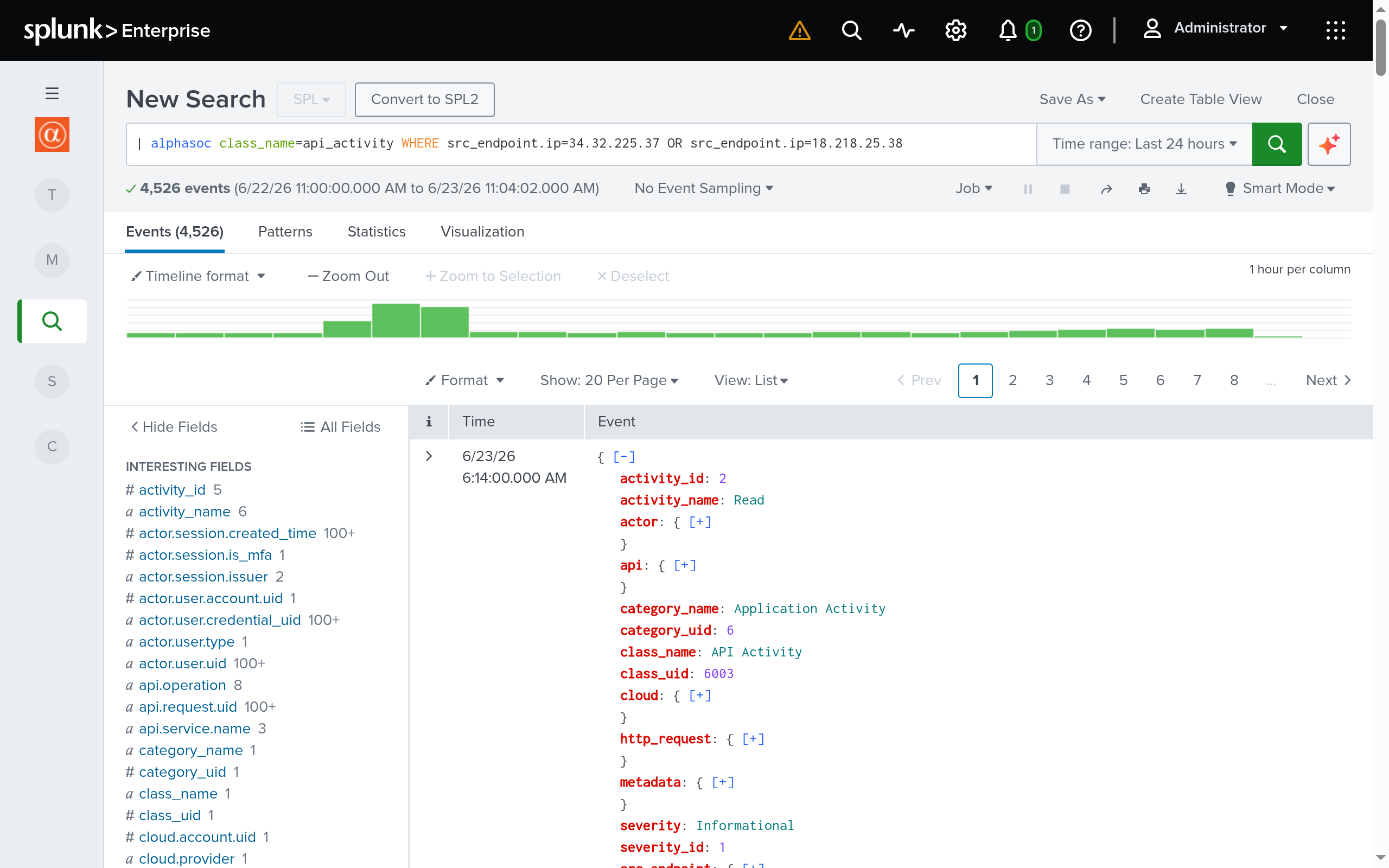
| alphasoc [class_name=<classes>] [log_source=<sources>] [dataset=<dataset>] [WHERE <filter_expression>]
WHERE separates options (class_name=, log_source=, dataset=) from filter
expressions — options come before it, filters follow it. It is only required
when filters are present; bare | alphasoc and options-only invocations run
without it.
Filters
Filters are field-value pairs using OCSF field paths that follow the WHERE
keyword. Combine them with AND / OR operators and parentheses.
ANDis implicit — adjacent filters without an operator are combined withAND. For example,WHERE device.ip=10.0.0.5 dst_endpoint.port=443is equivalent toWHERE device.ip=10.0.0.5 AND dst_endpoint.port=443.ANDhas higher precedence thanOR. Use parentheses to make grouping explicit when mixing both.
Datasets
The dataset parameter selects which lake target the query runs against:
events(default) returns raw OCSF telemetry as ingested;evidencesreturns the individual indicators AlphaSOC observed and flagged. Each evidences record is an OCSF event carrying anevidences[]array of those indicators.
The evidences dataset behaves differently from events:
- Requires a
WHEREfilter — cannot run unfiltered. class_nameandlog_sourceare rejected.device.*fields are rejected; usesrc_endpoint.ipordst_endpoint.ipinstead ofdevice.ip.
Queryable fields
Fields are scoped to the dataset you are querying. Field paths follow OCSF v1.5.0.
All datasets
| OCSF Field | Description | Example |
|---|---|---|
query.hostname | DNS query fully qualified domain name (FQDN) | www.google.com |
query.type | DNS query type | A |
dst_endpoint.ip | Destination IP address | 8.8.8.8 |
dst_endpoint.port | Destination port | 443 |
connection_info.protocol_name | IP protocol | tcp |
http_request.user_agent | HTTP client user agent | Mozilla/5.0 (X11; Linux x86_64) |
tls.certificate.fingerprints[0].value | TLS server certificate fingerprint | 0db6495611891de35650a18ad91002845f9cc6bc |
tls.certificate.subject | TLS server certificate subject | CN=example.com |
tls.certificate.issuer | TLS server certificate issuer | CN=GTS CA,O=Google Trust Services,C=US |
src_endpoint.ip | Source IP address | 192.0.2.10 |
Events dataset only
| OCSF Field | Description | Example |
|---|---|---|
device.ip | Device IP address | 10.0.0.5 |
device.hostname | Device hostname | workstation-01 |
device.uid | Device identifier (e.g., CrowdStrike AID) | 09e8771fc488477d9cddb61b5fd32c6c |
device.mac | Device MAC address | 00:1A:2B:3C:4D:5E |
actor.user.name | User name | alice |
metadata.tenant_uid | Tenant UID that matches AlphaSOC's dataScope | aws:123456789012:us-east-1:vpc-1234567890 |
http_request.http_method | HTTP client request method | GET |
Evidences dataset only
| OCSF Field | Description | Example |
|---|---|---|
url.url_string | Full URL | https://example.com/path |
tls.ja3_hash.value | JA3 TLS fingerprint | 0b2a5b08a7c44adaeaa1c0d29493c409 |
tls.ja3s_hash.value | JA3S TLS fingerprint | 254c31292ed05b84addc077fe6cee283 |
Reserved filters
These filters are separate from the filter expression and cannot be part of it. Each can only be specified once per query:
class_name— Comma-separated OCSF event classes. Accepts Title Case, snake_case, dash-separated formats. Examples:"dns_activity","DNS Activity","dns-activity". Valid for theeventsdataset only.log_source— Comma-separated data origins. See AlphaSOC data origins documentation for the complete list. Valid for theeventsdataset only.dataset—events(default) orevidences. Selects which lake target the query runs against.
Examples
Fetch all events in the selected time range:
| alphasoc
Filter by device IP:
| alphasoc WHERE device.ip=10.0.0.5
Combine filters with implicit AND (both forms are equivalent):
| alphasoc WHERE device.ip=10.0.0.5 dst_endpoint.port=443
Filter by event class and device:
| alphasoc class_name=dns_activity WHERE device.ip=10.0.0.5
Combine multiple filters with boolean logic:
| alphasoc class_name="dns_activity, network_activity" WHERE device.ip=10.0.0.5 AND (query.hostname=evil.com OR dst_endpoint.port=443)
Query a specific data origin:
| alphasoc log_source="aws-route53" WHERE query.hostname=example.com
Query the evidences dataset:
| alphasoc dataset=evidences WHERE query.hostname=evil.com
Streaming and limits
Results are streamed — events appear in Splunk as they are received from the data lake. Large result sets may be capped by a server-side limit, in which case a partial result set is returned. To reduce the result set, use a shorter time range or more specific filters.
Value parsing and validation
- IP fields (
device.ip,dst_endpoint.ip,src_endpoint.ip): IPv4 only. CIDR notation is restricted to/16,/24, and/32. IPv6 addresses and0.0.0.0are rejected. dst_endpoint.port: Valid range is 1–65535; port0is rejected.- Hostname wildcards (
query.hostname): Leading wildcards only —*.example.comis valid; bare*and mid-string wildcards (e.g.,www.*.com) are rejected. - Quoted values: Values containing spaces or
=must be quoted.
Display help
Run the following to display a quick reference of available filters and syntax directly in Splunk:
| alphasoc help
Learn More
Interested in trying out the AlphaSOC for Splunk? Contact AlphaSOC support to request access to the app and get started today!