Cribl

This guide provides step-by-step instructions on how to integrate Cribl with AlphaSOC. There are two integration methods available:

  • Cribl Stream Direct Integration - Send logs directly from Cribl Stream sources to AlphaSOC using a MinIO (S3-compatible) destination.
  • Cribl Search Integration - Use Cribl Search to query data from any of its supported data sources, then forward results to Cribl Stream via scheduled searches, which then routes the data to AlphaSOC.

Both methods ultimately deliver your logs to AlphaSOC for analysis. Choose the direct integration if your data is already flowing through Cribl Stream, or use the Cribl Search integration to pull data from external sources like Google Cloud Platform, Google Workspace, AWS, Azure, and many others.

Cribl Stream

Architecture

AlphaSOC integrates with Cribl Stream in the following way. You can send audit logs and telemetry to the AlphaSOC Analytics Engine using the instructions found on this page, and retrieve alerts for escalation using a REST Collector.
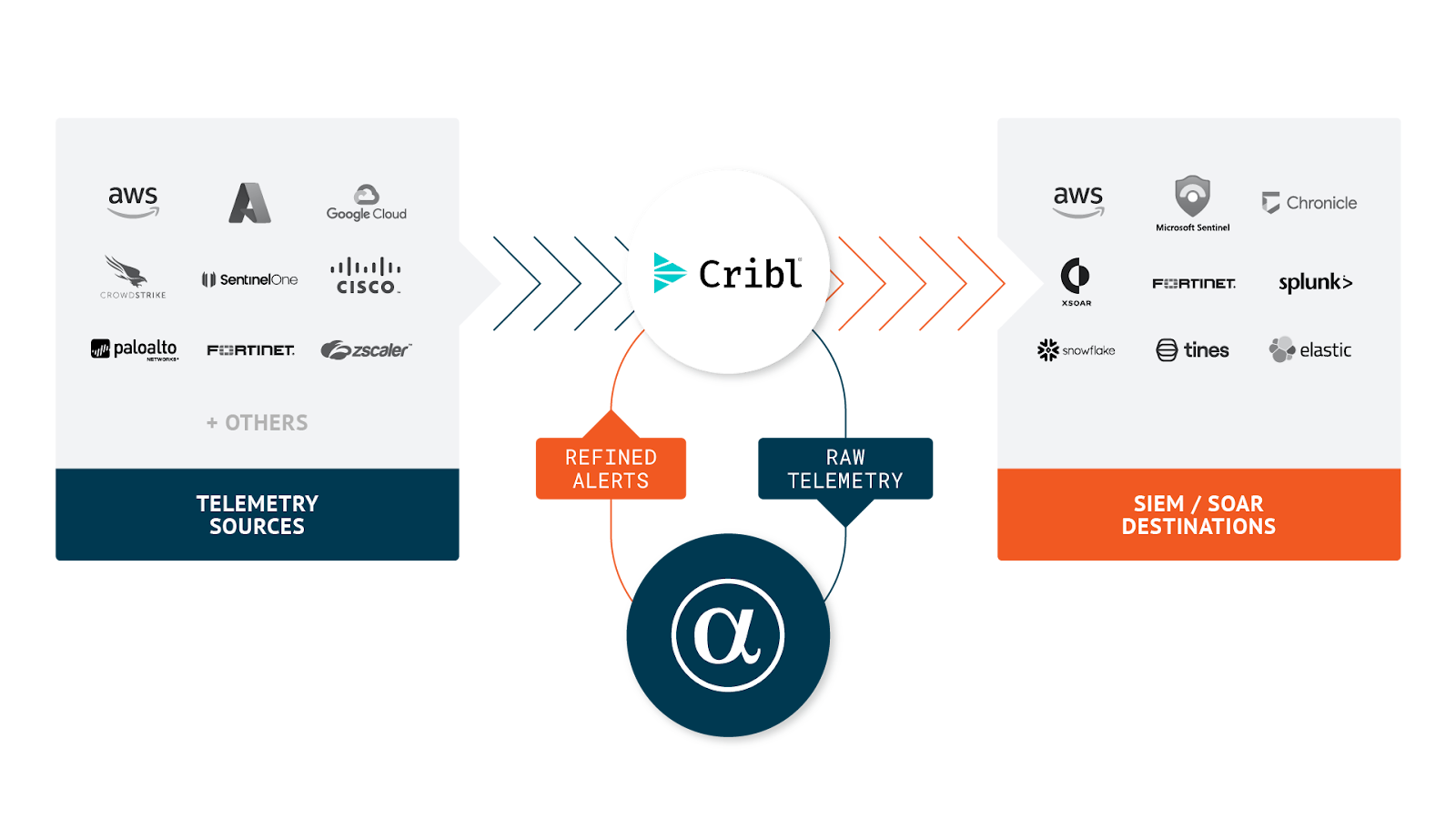
Cribl Architecture

Prerequisites

  • A running instance of Cribl Stream (cloud or on-premise)
  • One or more sources set up and receiving telemetry data
  • Access to the AlphaSOC Analytics Engine
  • Credentials to the AlphaSOC destination (S3)

Setting Up AlphaSOC as a Cribl Destination

Log in to your Cribl Stream instance with a username with admin privileges or a custom role that allows you to use Sources, Destinations and QuickConnect.

In desired worker group navigate to Data > Destinations.

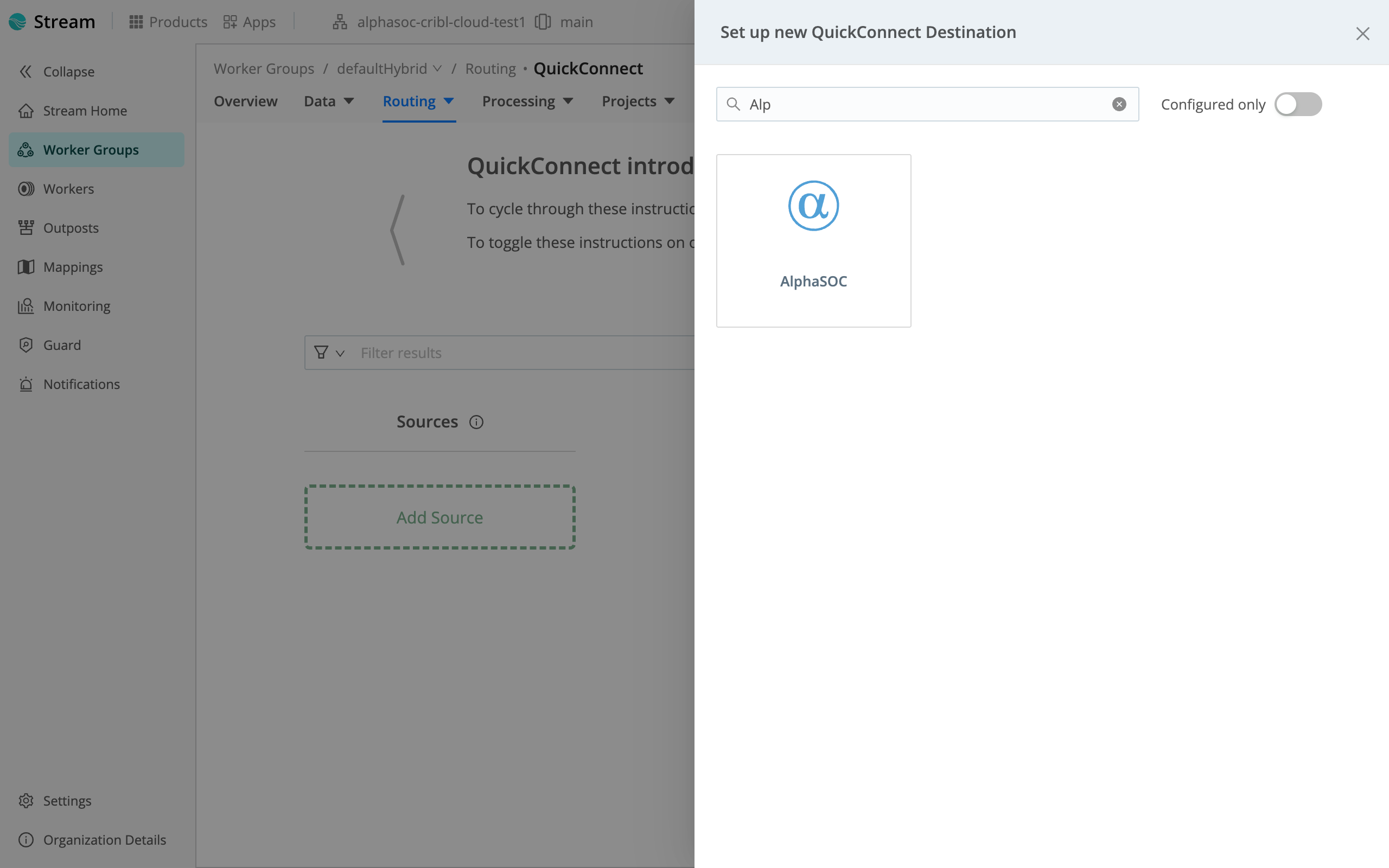
Look or search for MinIO and press on it to manage its configurations.

Cribl Destinations MinIO

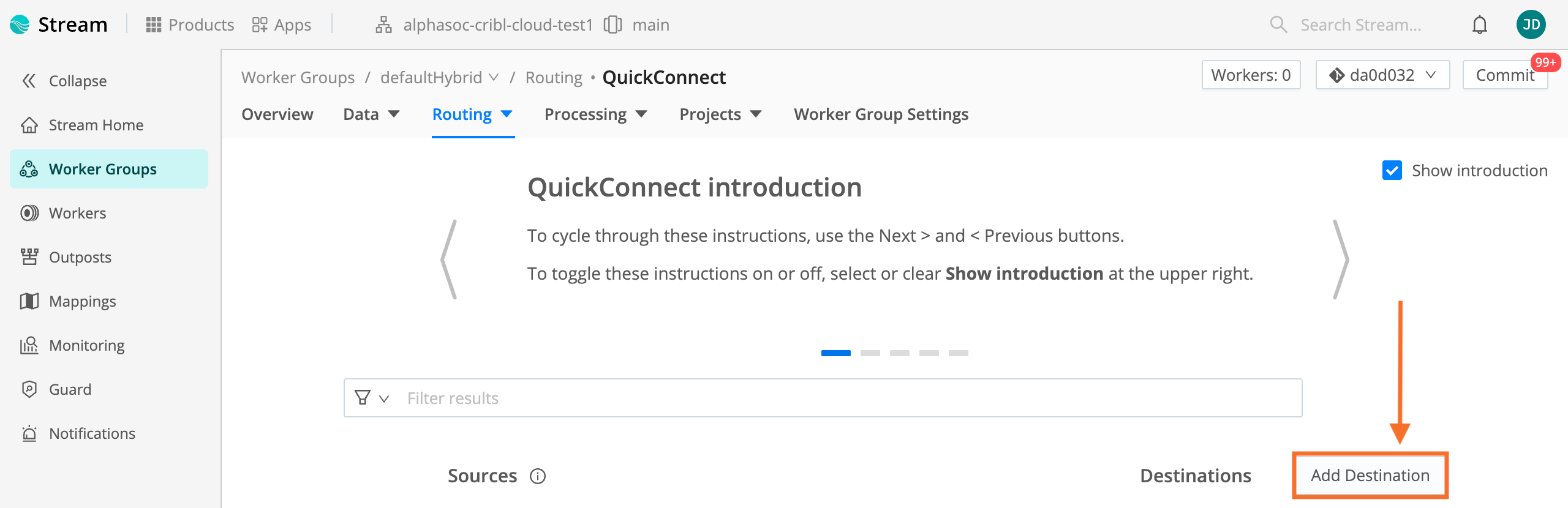
Click on Add Destination

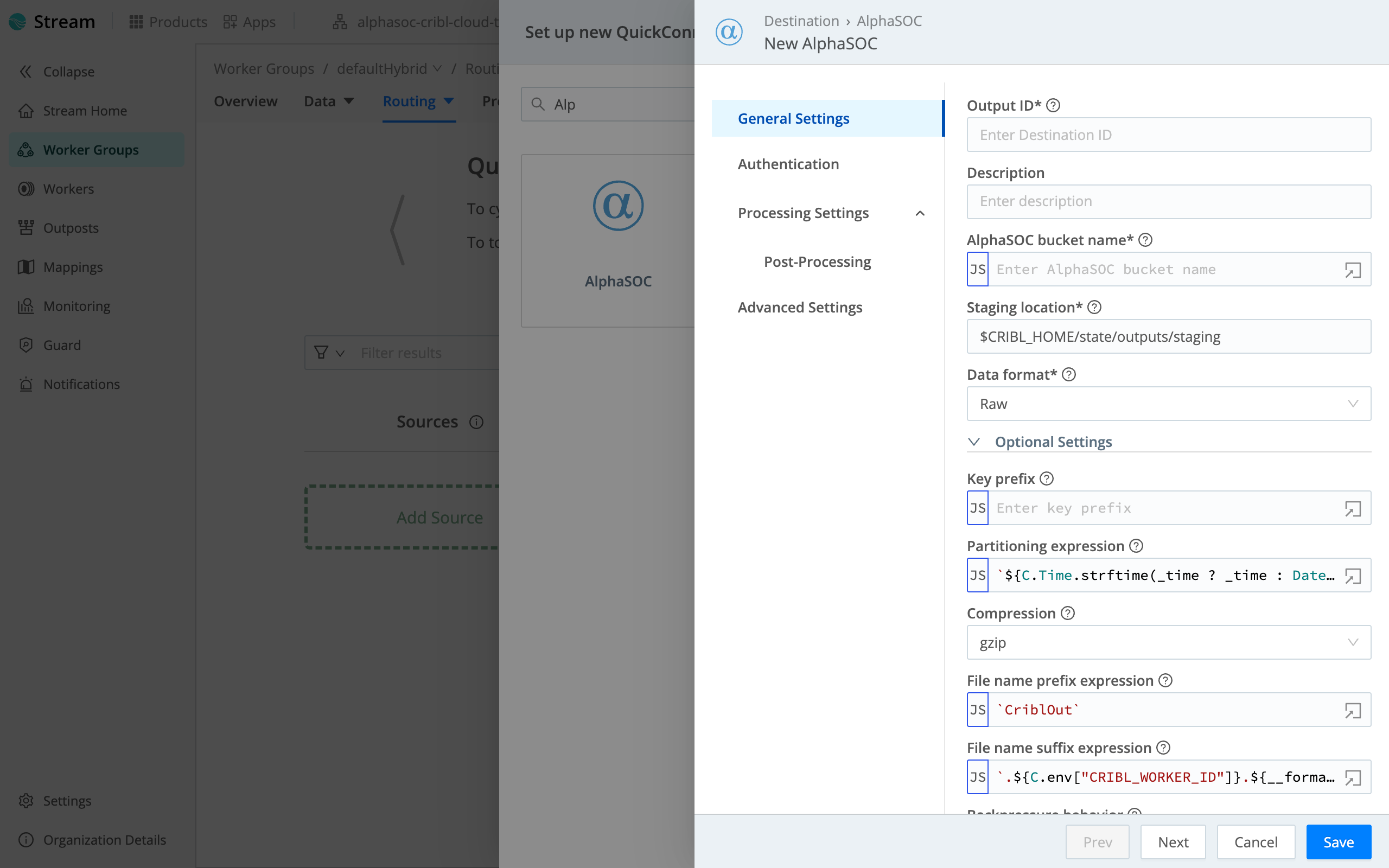
Cribl New MinIO

Click on Manage as JSON

Cribl MinIO Manage as JSON

In following JSON template replace Access Key and Secret Key placeholders using values from AlphaSOC console.

The configuration should look as follows:

Cribl MinIO JSON configuration

Press OK then save the configuration and commit/deploy the changes.

Obtaining access key and secret key

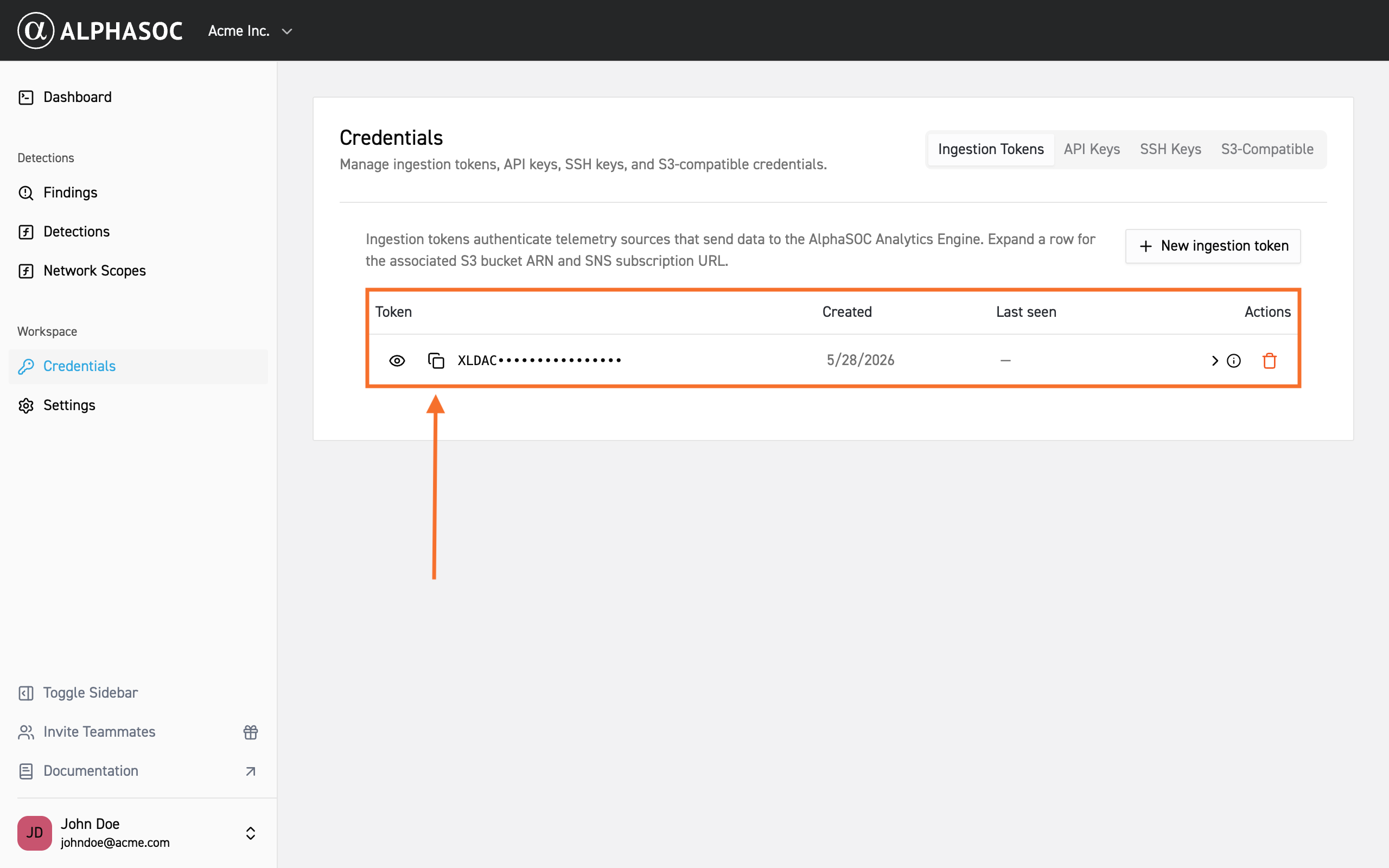
Obtain your Access Key and Secret Key from the AlphaSOC Workspace. Log in, navigate to Credentials at the bottom of the left menu, and in the S3 Server Credentials section, copy the keys or click New credentials to generate a new set.

AphaSOC S3 Credentials

note

Ensure to enclose each key within backticks (``). Example format: `[Your-Access-Key-Here]`.

Connecting to an Existing Source

Navigate to Routing > QuickConnect in the Cribl Stream web interface.

Drag a line between the Source you want to connect and the newly created AlphaSOC destination. You can do this for multiple sources. Choose Passthru to leave the data unaltered or select a Pipeline or Pack if you wish to perform any operation on the data.

Cribl QuickConnect

Connection configuration options

  • PassThru sends logs directly without modifications
  • Pipelines and Packs enable custom processing and enrichment based on your source requirements

Save the chosen configuration and commit/deploy the changes.

(Optional) Setting Up a Pack or Pipelines

If you've chosen to use a pack for data enrichment or transformation then you can assign a pack as follows:

Cribl Pack

Testing the Integration

First, check the status tab of the configuration panel of AlphaSOC destination and verify that the destination is working properly as below:

Cribl Status

Then under the Test tab, select a sample file and click Run Test

Cribl Test

You should get a Success message as shown above.

You can now start sending some test logs to Cribl Stream from your chosen source or use the internal datagen source to generate some data. Sample logs can also be provided if needed.

Verify that the logs are successfully received in the AlphaSOC destination by checking the Live Data tab on the configuration panel.

Check the AlphaSOC Analytics Engine console to ensure that the logs are being processed.

Debugging

Before checking the logs, it is important to increase the verbosity of the channel in the group settings.

Make note of the channel name (available in the Logs tab of the destination configuration panel).

Cribl Logging

Go to Settings > Logging > Levels and search for the channel name. Typically, if you named the destination as AlphaSOC, searching as illustrated below should bring up the one channel:

Cribl Logging

Change the logging level to either debug (or even silly for even more verbosity) then return to the Logs tab of the configuration panel to inspect the logs for further information on the problem.

MinIO JSON Template

Use the following JSON template for configuring the MinIO destination:

{
"id": "AlphaSOC",
"systemFields": ["cribl_pipe"],
"streamtags": [],
"awsAuthenticationMethod": "manual",
"stagePath": "$CRIBL_HOME/state/outputs/staging",
"addIdToStagePath": true,
"signatureVersion": "v4",
"objectACL": "private",
"reuseConnections": true,
"rejectUnauthorized": true,
"verifyPermissions": true,
"removeEmptyDirs": true,
"partitionExpr": "`${C.Time.strftime(_time ? _time : Date.now()/1000, '%Y/%m/%d')}/${__inputId}`",
"format": "raw",
"baseFileName": "`CriblOut`",
"fileNameSuffix": "`.${C.env[\"CRIBL_WORKER_ID\"]}.${__format}${__compression === \"gzip\" ? \".gz\" : \"\"}`",
"maxFileSizeMB": 32,
"maxOpenFiles": 100,
"headerLine": "",
"writeHighWaterMark": 64,
"onBackpressure": "block",
"deadletterEnabled": false,
"onDiskFullBackpressure": "block",
"forceCloseOnShutdown": false,
"maxFileOpenTimeSec": 300,
"maxFileIdleTimeSec": 30,
"maxConcurrentFileParts": 4,
"compress": "gzip",
"compressionLevel": "best_speed",
...

Cribl Search allows you to query data from any of its supported data sources and forward the results to Cribl Stream using scheduled searches with the send operator. From Cribl Stream, the data is then routed to AlphaSOC for analysis.

The following sections provide detailed guides for Google Cloud Platform API and Google Workspace API, which can be used as reference for other data sources.

Create a Google service account + JSON key

Use a Google Cloud service account for Cribl Search to authenticate to Google APIs. Note that the permissions can be altered later.

  1. In Google Cloud console, navigate to IAM & Admin > Service Accounts.
  2. Select Create service account.
  3. Enter service account details, then select Create and continue.
  4. (Optional) Assign roles needed to read the APIs you will query, then select Continue.
  5. (Optional) Add users/groups that can manage the service account, then select Done.
  6. Select the created service account from the list, then select Keys > Add key > Create new key.
  7. Select JSON, then Create to download the credentials file that will be used in the next steps.

Workspace-only: Set up domain-wide delegation

Domain-wide delegation is required to query Google Workspace audit data on behalf of Workspace users. You do not need this for Google Cloud Platform API access.

note

You must be a Google Workspace Super Admin to complete the Admin console steps.

  1. In Google Cloud console, navigate to IAM & Admin > Service Accounts and open the created service account.
  2. Open Advanced settings and copy the Client ID under Domain-wide delegation.
  3. Click on View Google Workspace Admin Console and authenticate to your Super Admin account.
  4. In the menu, navigate to Security > Access and data control > API controls > Manage Domain Wide Delegation.
  5. Select Add new. Set Client ID to the service account client ID and set OAuth Scopes to a comma-delimited list of scopes. For Cribl Search Workspace audit logs, use:
    https://www.googleapis.com/auth/admin.reports.audit.readonly
  6. Select Authorize (changes can take time to propagate).

Workspace-only: Create Google Workspace user account for Cribl to impersonate

Cribl Search uses this user account (via domain-wide delegation) to query the Google Workspace Reports API. You'll enter the user's email address in the Dataset Provider as Impersonated Account's Email Address. If you want to use an existing user that has the Super Admin role, you can skip this step.

note

Due to how the Google Workspace APIs work, this impersonated user must have the Super Admin role for the resources you want to search.

  1. In the Google Admin console, navigate to Directory > Users.
  2. Select Add new user and create a dedicated user (a real user or a service placeholder).
  3. Record the user's Primary email address.
  4. Grant the user the Super Admin role:
    • In Directory > Users, open the user's page.
    • Select Admin roles and privileges.
    • Set Super Admin to Assigned, then select Save.
  5. Wait for role changes to propagate (can take up to 24 hours).

Google Cloud Platform API

  1. In Google Cloud, create (or reuse) a service account and download its JSON key.
  2. In Cribl Search, navigate to Data > Dataset Providers > Add Provider > Create.
  3. In New Dataset Provider:
    • Set ID to a unique name (example: google_cloud_platform_provider).
    • Set Dataset Provider Type to Google Cloud Platform API.
    • Select Add Configuration and enter:
      • Name: the GCP project name (not the service account name).
      • Service Account Credentials: paste (or upload) the service account JSON key.
  4. Select Save.
  5. In Cribl Search, navigate to Data > Datasets > Add Dataset.
  6. In New Dataset:
    • Set ID (example: google_cloud_platform).
    • Set Dataset Provider to the provider ID you created.
    • Select Add endpoint and enable the endpoint(s) you want to query.
    • If prompted for Region (certain endpoints), select one appropriate for your resources.
  7. Select Save.

Google Workspace API

Google-side authorization (required):

  1. Create (or reuse) a Google Workspace service account and download its credentials JSON.
  2. Configure domain-wide delegation (see prerequisite section) for:
    https://www.googleapis.com/auth/admin.reports.audit.readonly
  3. Create (or reuse) a Google Workspace user account for impersonation and grant it the Super Admin role (see the Workspace-only section above).

Cribl Search configuration:

  1. In Cribl Search, navigate to Data > Dataset Providers > Add Provider.
  2. In New Dataset Provider:
    • Set ID (example: google_workspace_provider).
    • Set Dataset Provider Type to Google Workspace API.
    • Select Add Configuration and enter:
      • Account Name: a label for the Workspace account (can be anything).
      • Impersonated Account's Email Address: email of the Workspace user to impersonate (with Super Admin).
      • Service Account Credentials: paste the service account JSON.
  3. Select Save.
  4. In Cribl Search, navigate to Data > Datasets > Add Dataset.
  5. In New Dataset:
    • Set ID (example: google_workspace_api).
    • Set Dataset Provider to the provider ID you created.
    • Select Add endpoint and enable the endpoint(s) you want to query.
  6. Select Save.

Verify if Cribl Search is Working

To verify that Cribl Search can successfully query the dataset, run a basic search query with a reasonable time range (example: Last 24 hours):

dataset=google_workspace_api
| limit 10

(Repeat for your GCP dataset ID.)

Troubleshooting Permissions and API Errors

  1. If the search fails or returns unexpected results, open Details (bottom-right of the query box) and check:

    • Details > Logs for auth/permission/API errors.
    • Details > Metrics to confirm the search is scanning/returning events.
  2. Fix permissions based on the error message:

  • Google Workspace API: confirm domain-wide delegation scope is present and the impersonated user is Super Admin.
  • GCP API: grant the service account the read permissions needed by the enabled endpoints (the error will usually name the missing permission).

Setup Scheduled Saved Search with send

If your Cribl Search queries are working and returning results, you can set up scheduled searches to forward the data to Cribl Stream.

Create one scheduled search per dataset (recommended), each ending with send.

  1. In Cribl Search, navigate to Saved Searches > Add Search and name your search.

  2. In the Query section:

    • In the query input, specify the dataset and pipe it to send:

      • For default Stream Worker Group:
      dataset=google_workspace_api
      | send
      • For named Stream Worker Group:
      dataset=google_cloud_platform
      | send group=my_worker_group
      • For specific (hybrid/on-prem) Cribl HTTP endpoint:
      dataset=google_workspace_api
      | send "https://in.your-domain.example:10200"
    • Set the Time range relative to the scheduled run.

  3. In the Schedule section:

    • Toggle Run on schedule on.
    • Set the frequency (dropdowns or cron) and Timezone.
    • Select Save.

Validate your setup:

  1. Go to History and filter for Scheduled.
  2. Open the latest execution; if events were dropped or failed to send, check Details > Logs.
note
  • send defaults to forwarding to a Cribl HTTP Source in Stream.
  • Sending to a custom URL requires Search Admin (per Cribl Search permissions).
  • The time range should cover the time between scheduled runs.

Setup Cribl HTTP Source in Stream

  1. In Cribl Stream, choose the Worker Group that will receive the send traffic.
  2. Configure the Cribl HTTP Source:
    • Option A (QuickConnect): Routing > QuickConnect > Add Source.
    • Option B (Routes): Data > Sources > Add Source.
  3. Select Cribl HTTP, then select Add Source (Add New for QuickConnect).
  4. In New Source:
    • Enabled: On.
    • Input ID: a unique ID (example: in_cribl_http_search).
    • Address: typically 0.0.0.0.
    • Port: typically 10200.
    • Configure TLS if required by your environment (both sides must match).
  5. Select Save, then Commit & Deploy.
tip

For Cribl.Cloud managed groups, the in_cribl_http source is often enabled by default on port 10200. If it already exists, you can reuse it instead of creating a second listener.

To verify it's working, you can:

  1. Open the configured Source and navigate to the Live Data tab.
  2. Select Capture, then Start.
  3. Run previously used Cribl Search query ending with | send (or wait for the scheduled search to run).

The results should show up in the Live Data capture session.

Setup AlphaSOC Destination (if not configured yet)

Follow the instructions in the previous section to set up AlphaSOC as a MinIO destination in Cribl Stream if you haven't already.

Connect Cribl HTTP Source to AlphaSOC Destination

Option A: QuickConnect

  1. In Cribl Stream, navigate to Routing > QuickConnect.
  2. Drag a connection from your Cribl HTTP source (the one receiving Search send) to the AlphaSOC destination.
  3. Choose Passthru.
  4. Save, then Commit & Deploy.

Option B: Routes

  1. In Cribl Stream, navigate to Routing > Routes.
  2. Select Add Route.
  3. Set a filter to match your HTTP Source (for example: __inputId=='cribl_http:in_cribl_http_search').
  4. Set Passthru pipeline.
  5. Set destination to previously configured AlphaSOC destination.
  6. Save, then Commit & Deploy.
note

Make sure it's not blocked by any of the previous routes.

References

Use these source docs if anything is unclear or if you need deeper detail for a specific UI field/permission.