Sources
Use the Sources page to onboard telemetry into AlphaSOC. You can currently configure Azure Blob Storage and Amazon S3 as sources to stream data to AlphaSOC for analysis.
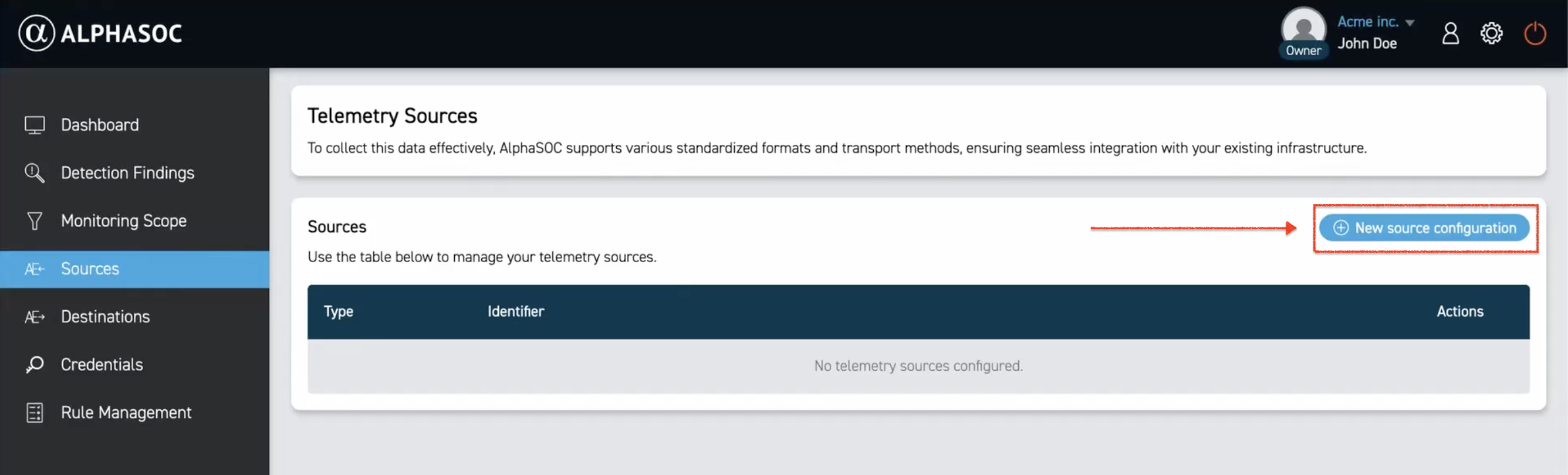
To add a new source, click the New source configuration button.
Configuring Amazon S3
To submit data stored in an Amazon S3 bucket to AlphaSOC for analysis, you must configure the Amazon IAM Role ARN, Amazon S3, and Amazon SQS as sources.
Click New source configuration, select Amazon IAM Role ARN as the type, and enter your IAM role ARN. The IAM role must provide the necessary permissions to access and retrieve data from the S3 bucket and read messages from the SQS queue.
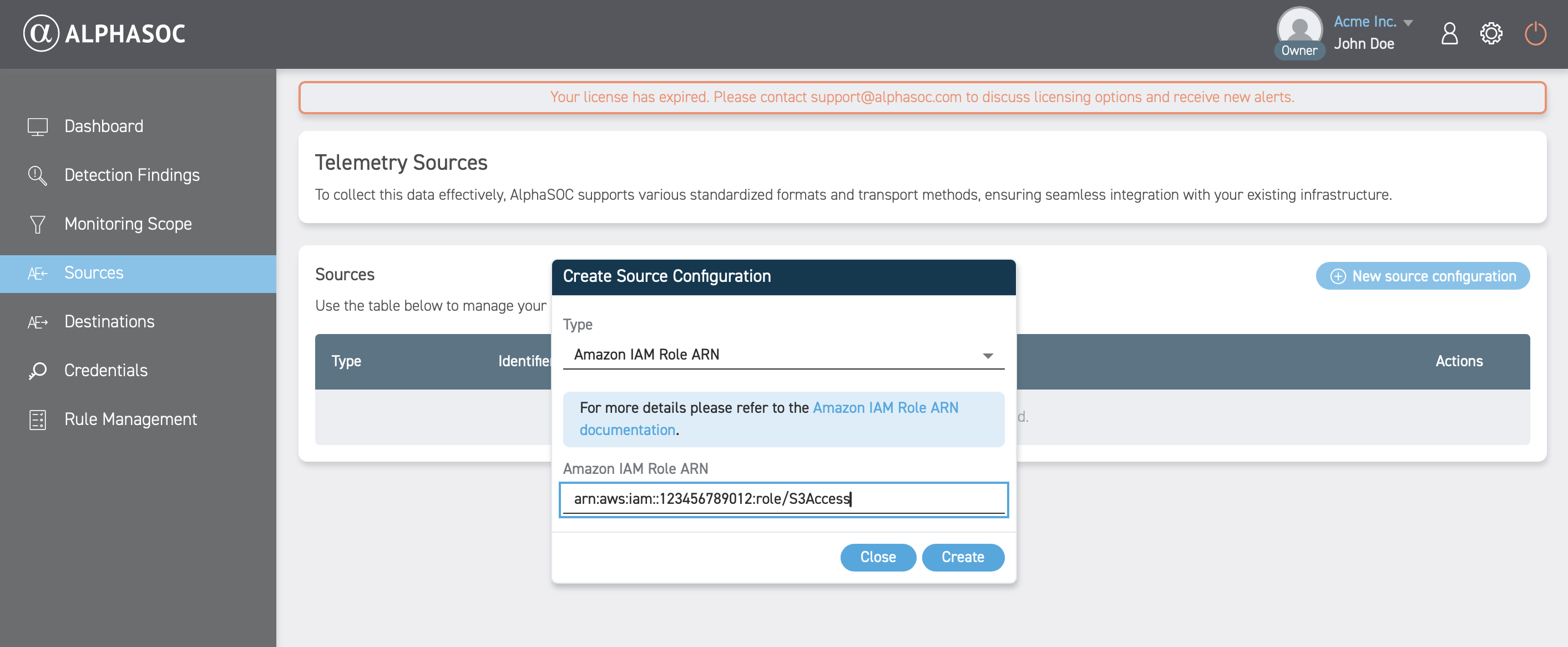
After clicking Create, you will see a confirmation message and your new source will appear in the sources list.
Next, click New source configuration and select Amazon S3 as the source type.
Enter your Amazon S3 configuration details:
- Amazon IAM role ARN: Select the IAM role you previously added.
- S3 bucket name: Enter your bucket name, or use the slider to choose the Use any bucket option to allow access to all S3 buckets.
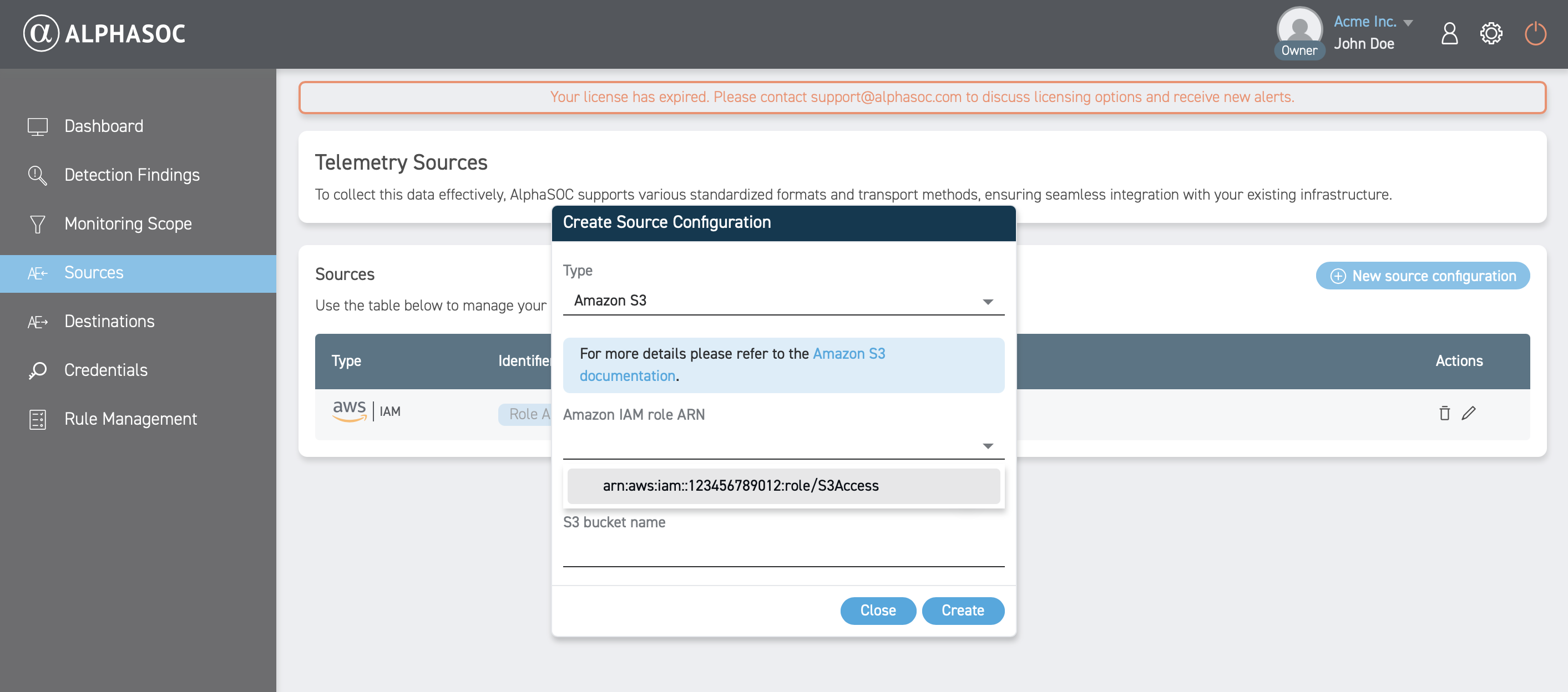
Click Create to save the source. After successful creation, you will see a confirmation message and your new source will appear in the sources list.
Next, configure the Amazon SQS source. Click New source configuration and select Amazon SQS as the source type.
Enter your Amazon SQS configuration details:
- Amazon IAM role ARN: Select the IAM role you previously added.
- SQS queue URL: Enter the URL of your SQS queue.
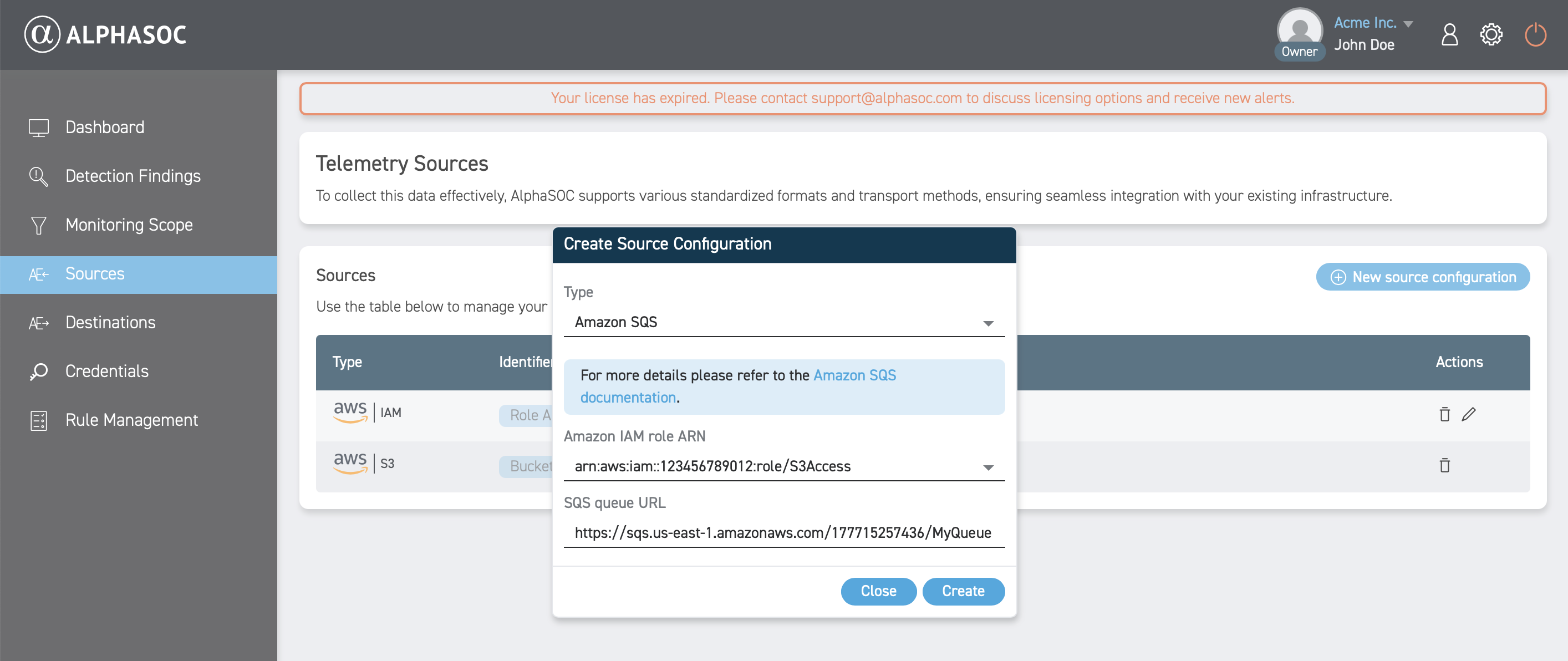
Click Create to save the source.
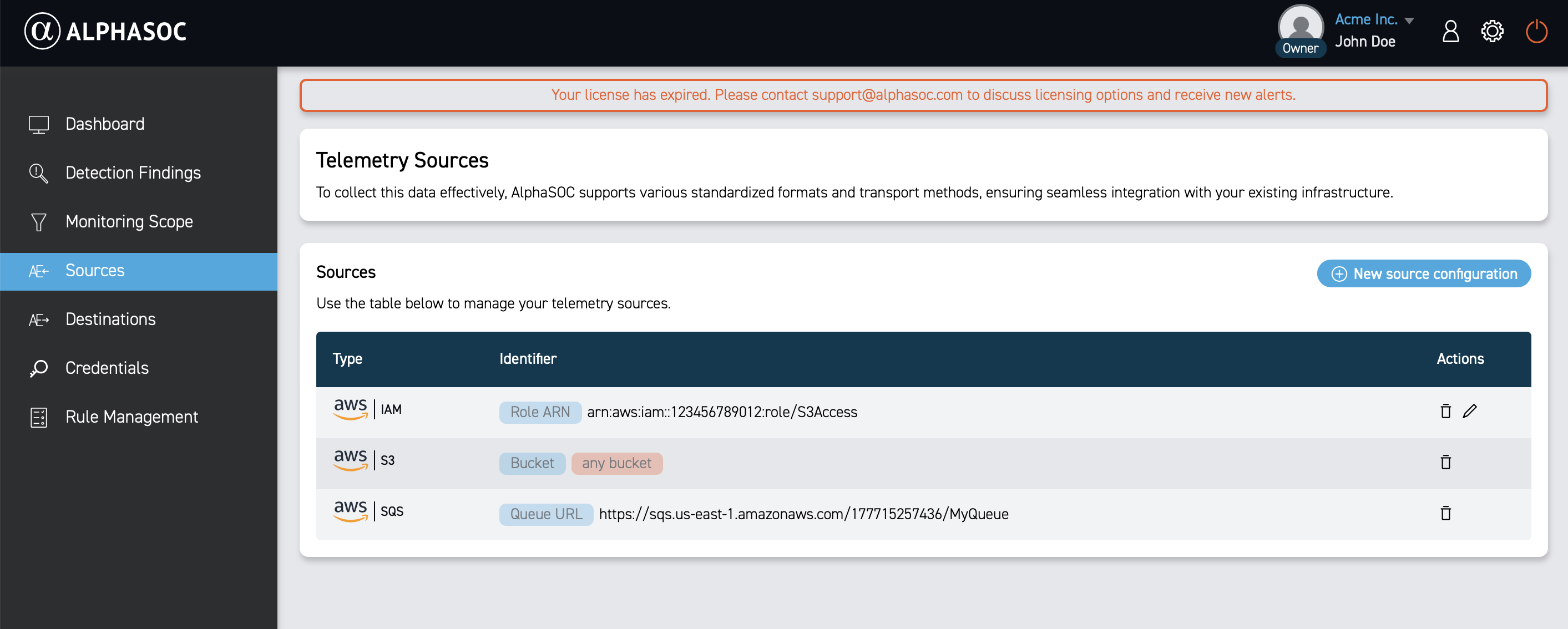
After successful creation, you will see a confirmation message and your new source will appear in the sources list.
Configuring Azure Blob Storage
To submit data stored in an Azure Storage account to AlphaSOC for analysis, click New source configuration and select Azure Blob Storage as the source type.
Enter your Azure configuration details:
- Client ID: Enter the Application (client) ID of your registered application.
- Tenant ID: Enter your Microsoft Entra ID tenant ID.
- Storage Account Name: Enter the name of your Azure Storage account.
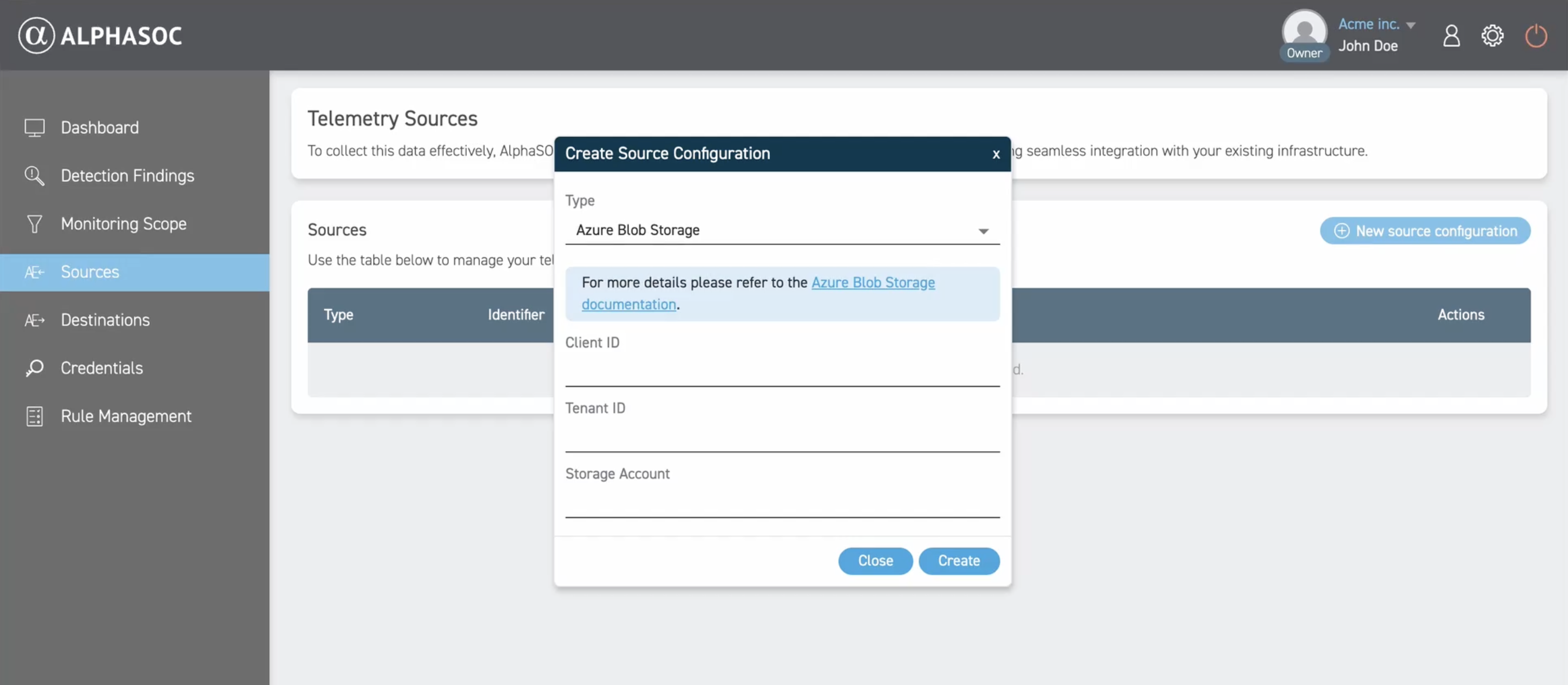
Click Create to save the source.
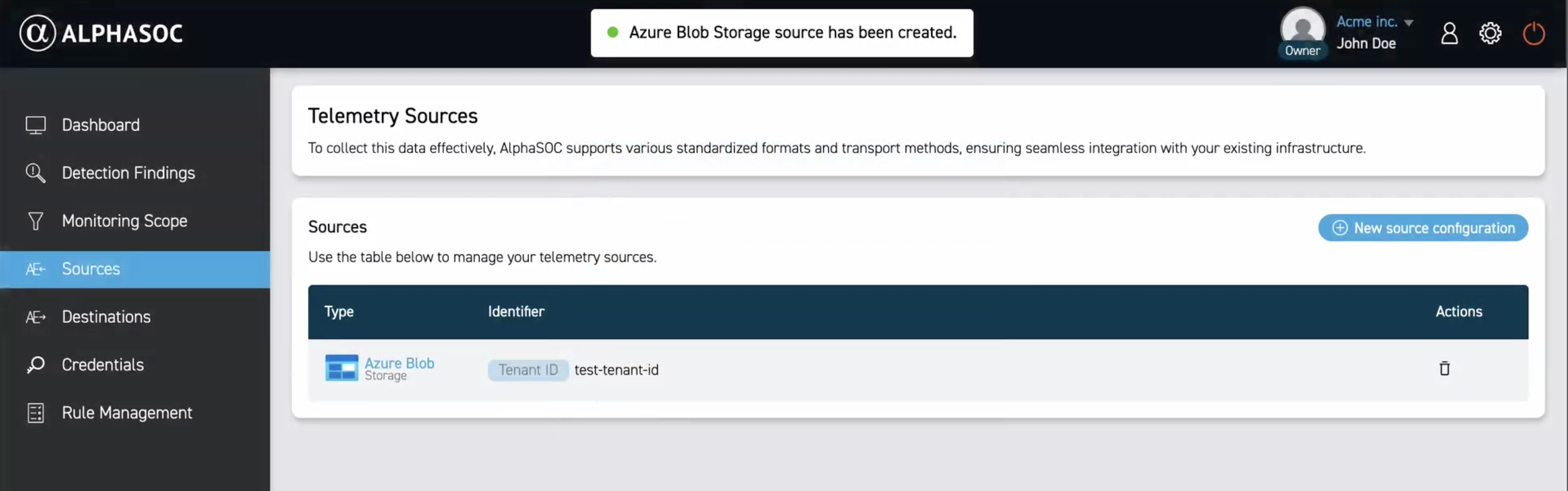
After successful creation, you will see a confirmation message and your new source will appear in the sources list.
Managing Sources
Use the bin icon in the Actions column to delete an existing source.